Setting up Lock-in, screen by screen
Every screen you will see, Apple’s included, in order. The short version is on the setup page.
Get set up
Two steps: give Lock-in Screen Time access, then pick the apps to block.
-
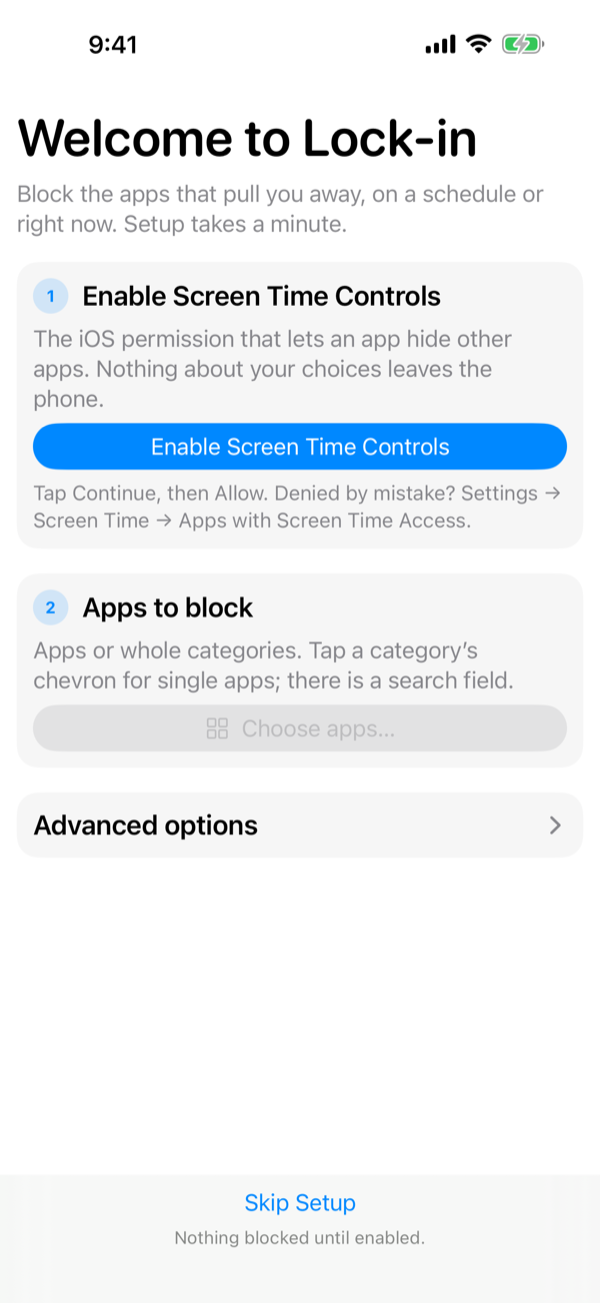
1Open Lock-in. Tap Enable Screen Time Controls.
-
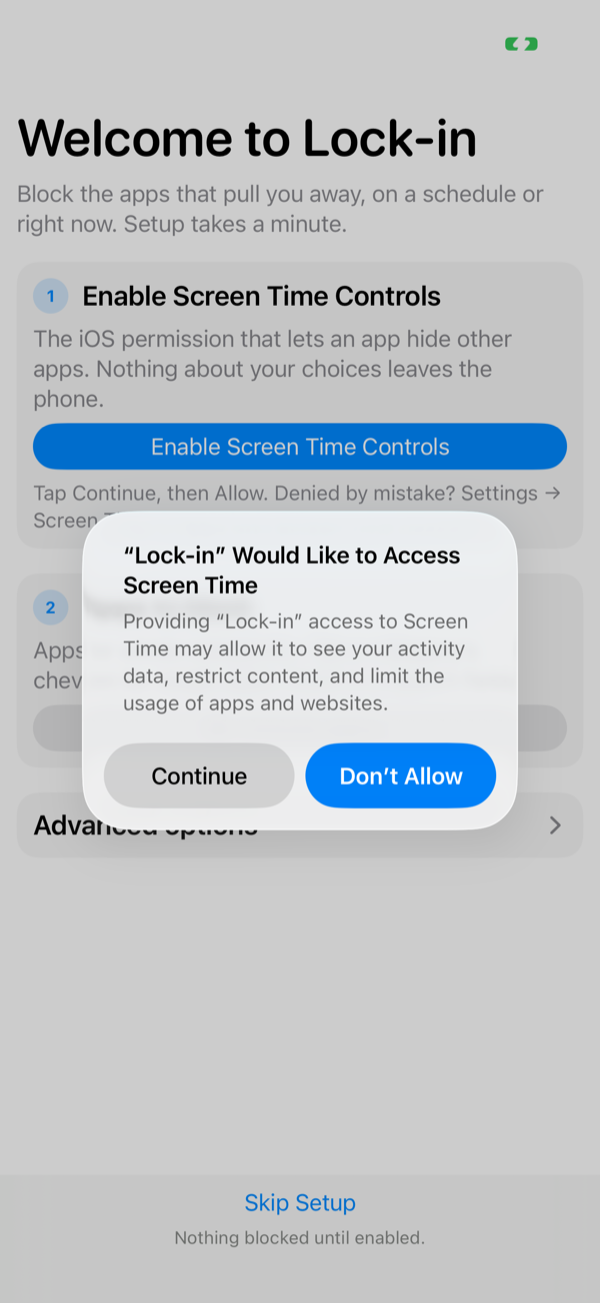
2iOS asks first. Tap Continue.
-
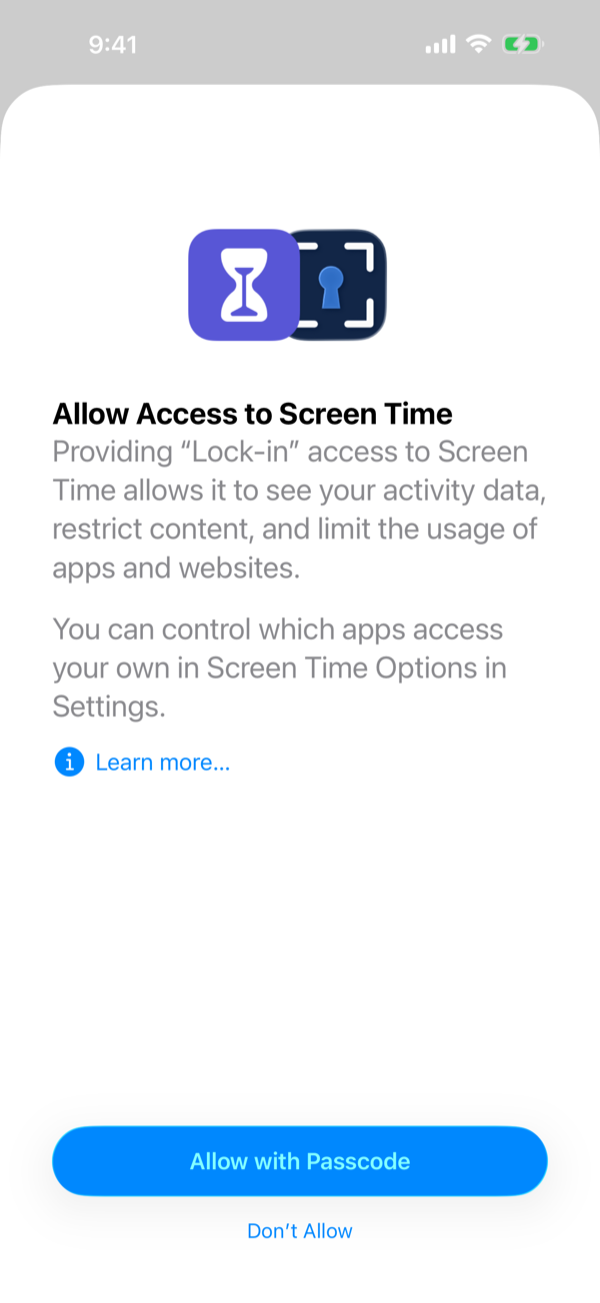
3This is Apple's own screen. Tap Allow with Passcode.
-
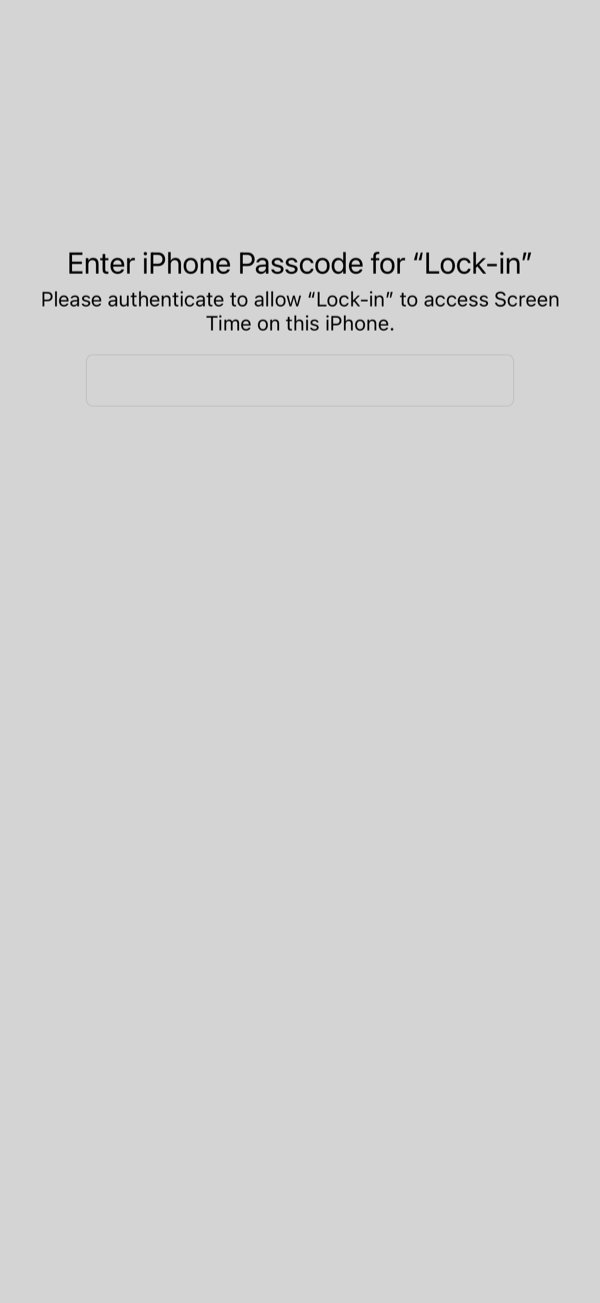
4Enter your iPhone passcode. It goes to iOS, and Lock-in never sees it.
-
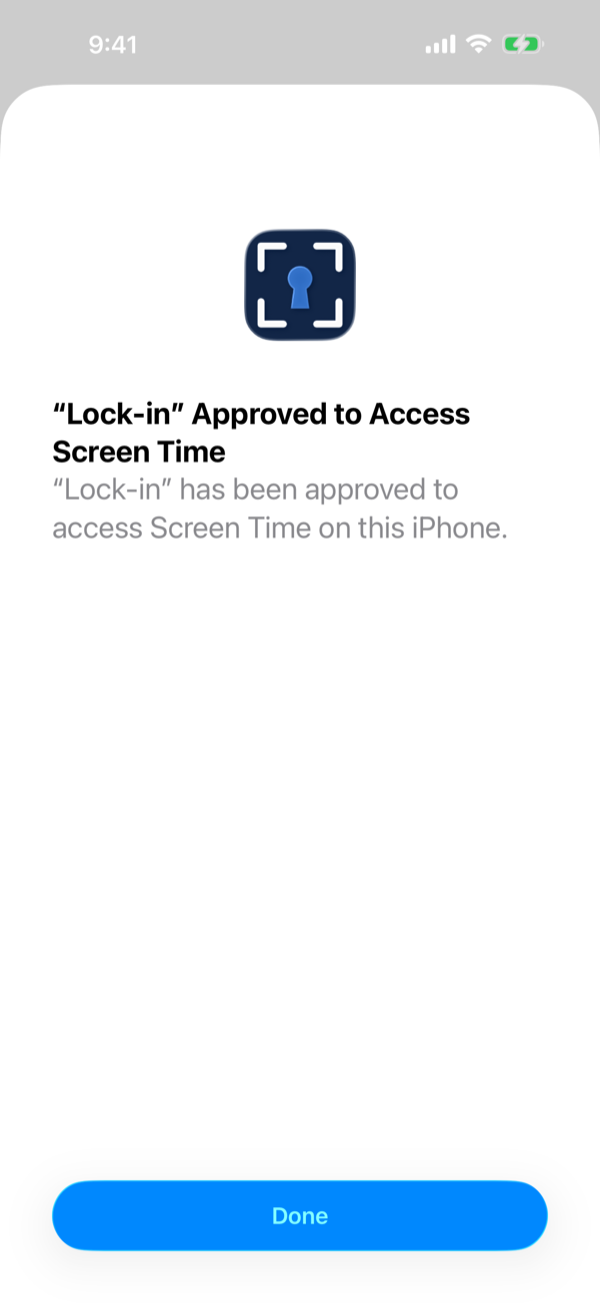
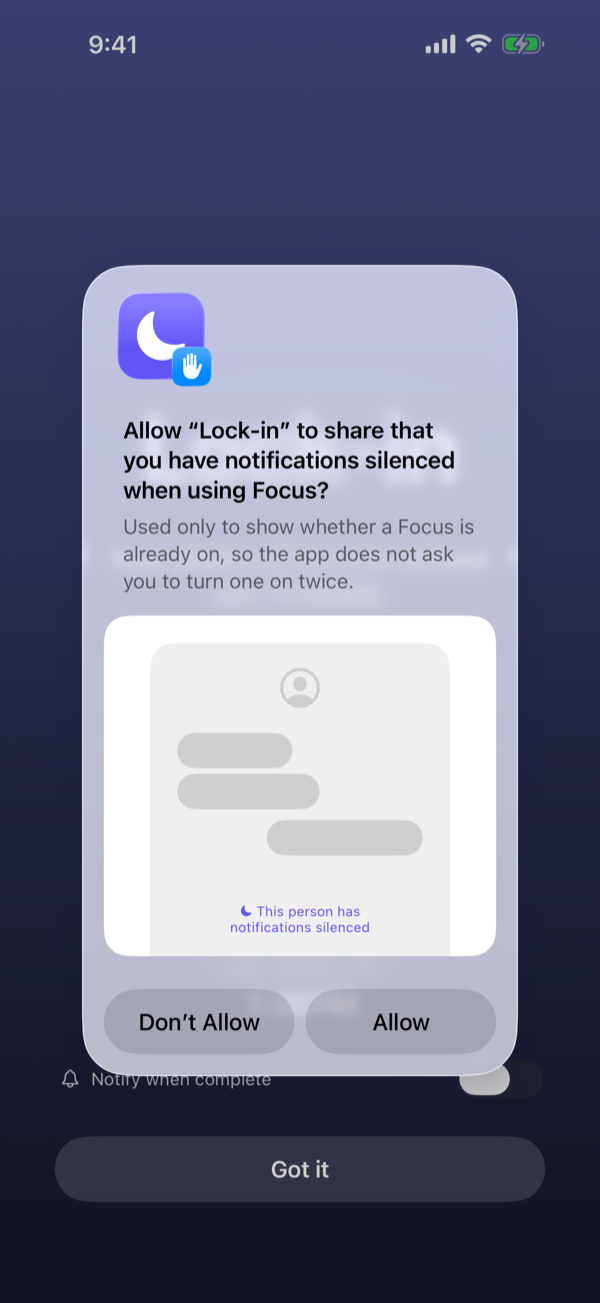
5Tap Done.
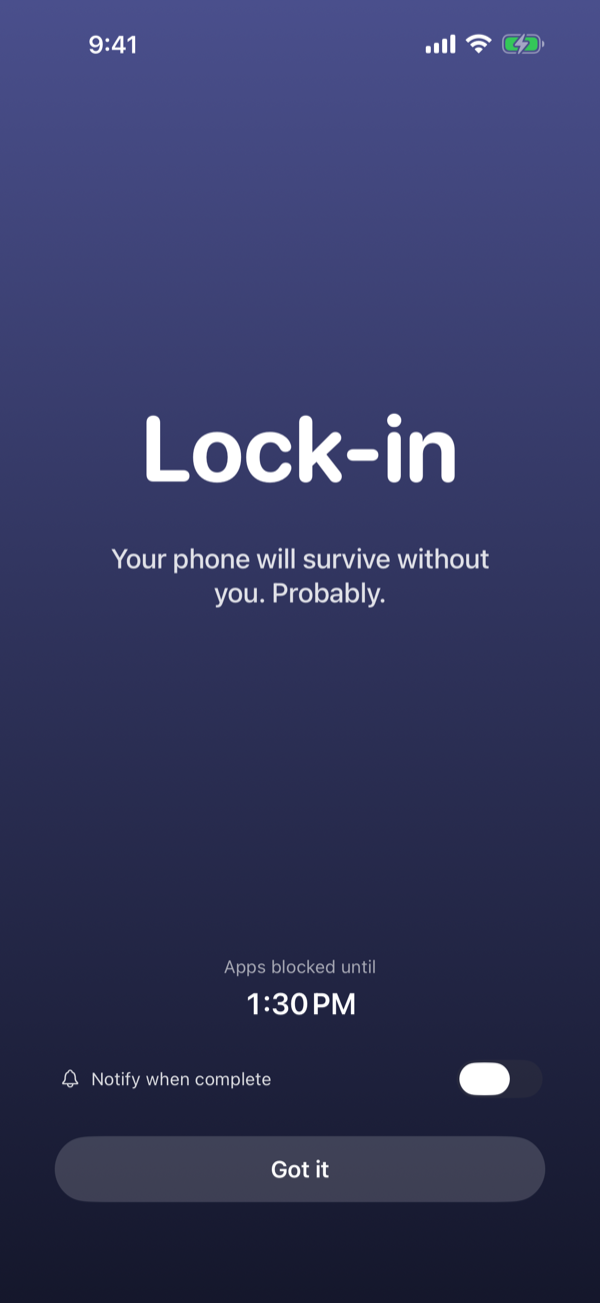
-
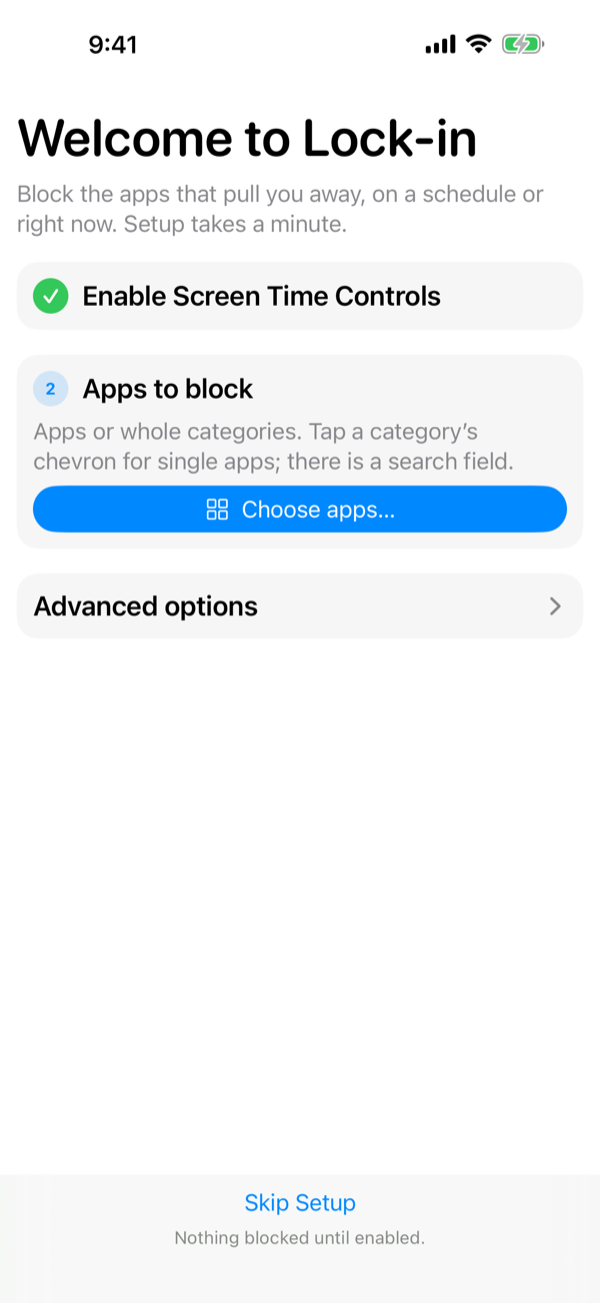
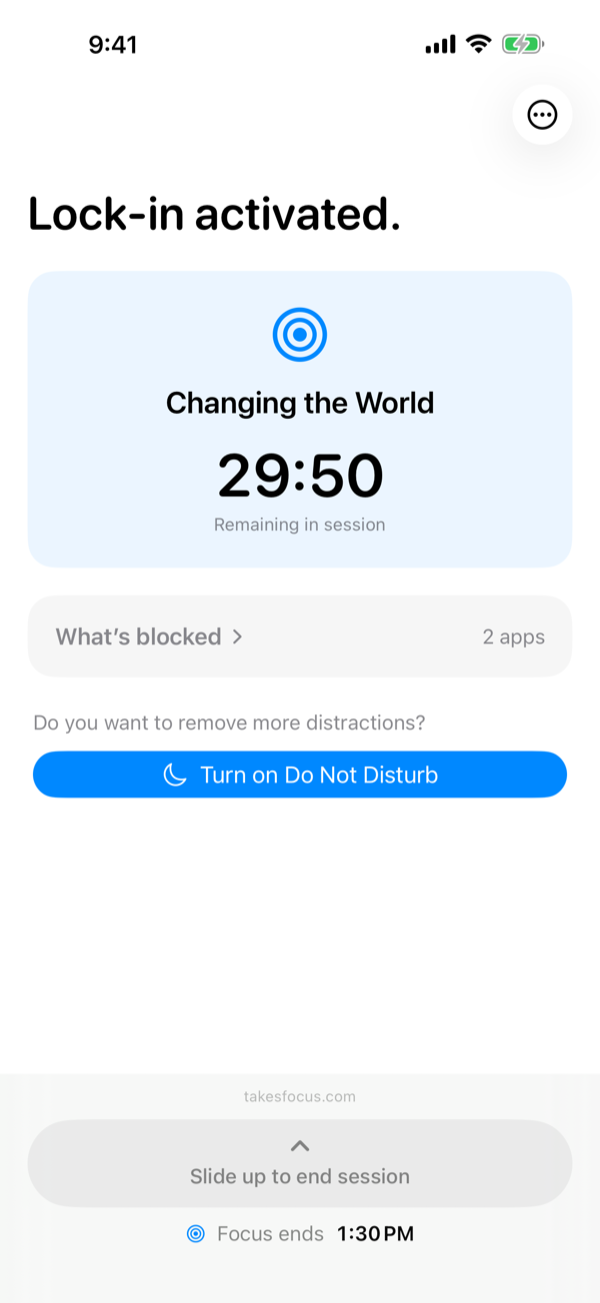
6Step 1 has a green tick. Tap Choose apps.
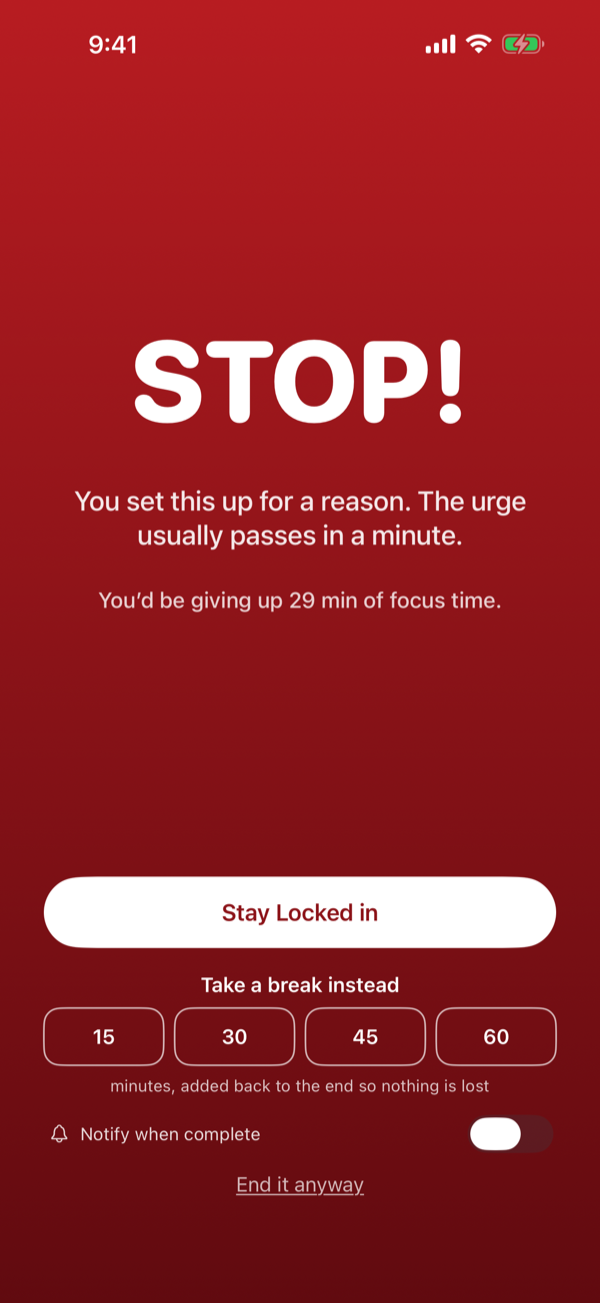
-
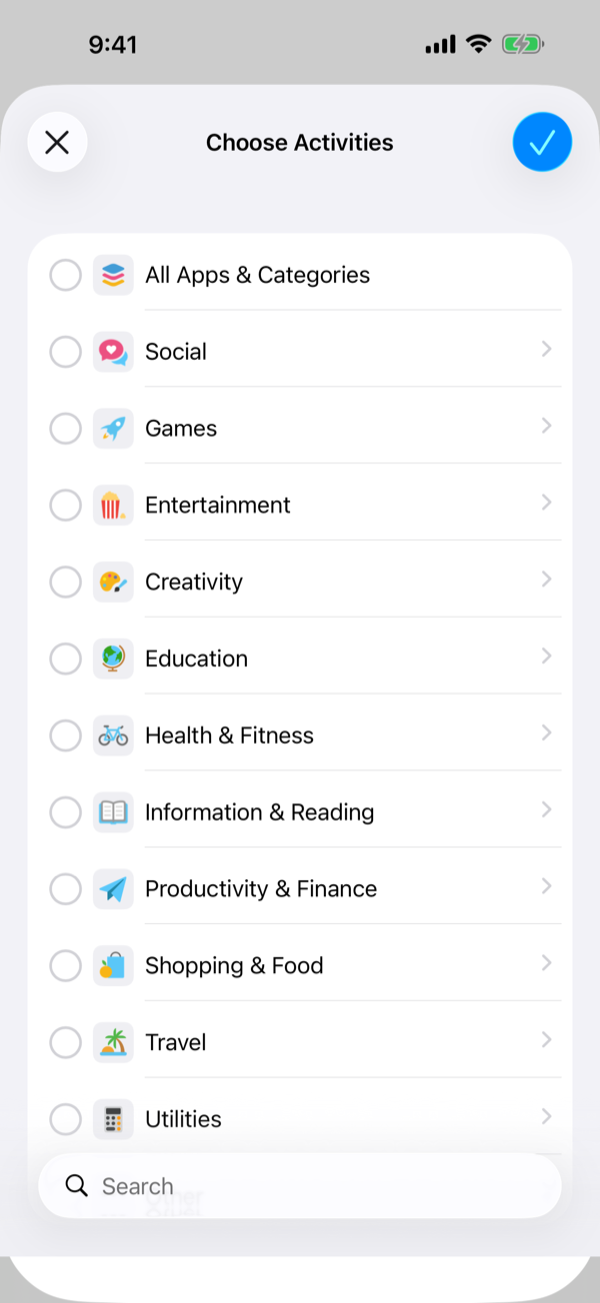
7Apple's app list. Tick a category to block every app in it, or open one to pick single apps.
-
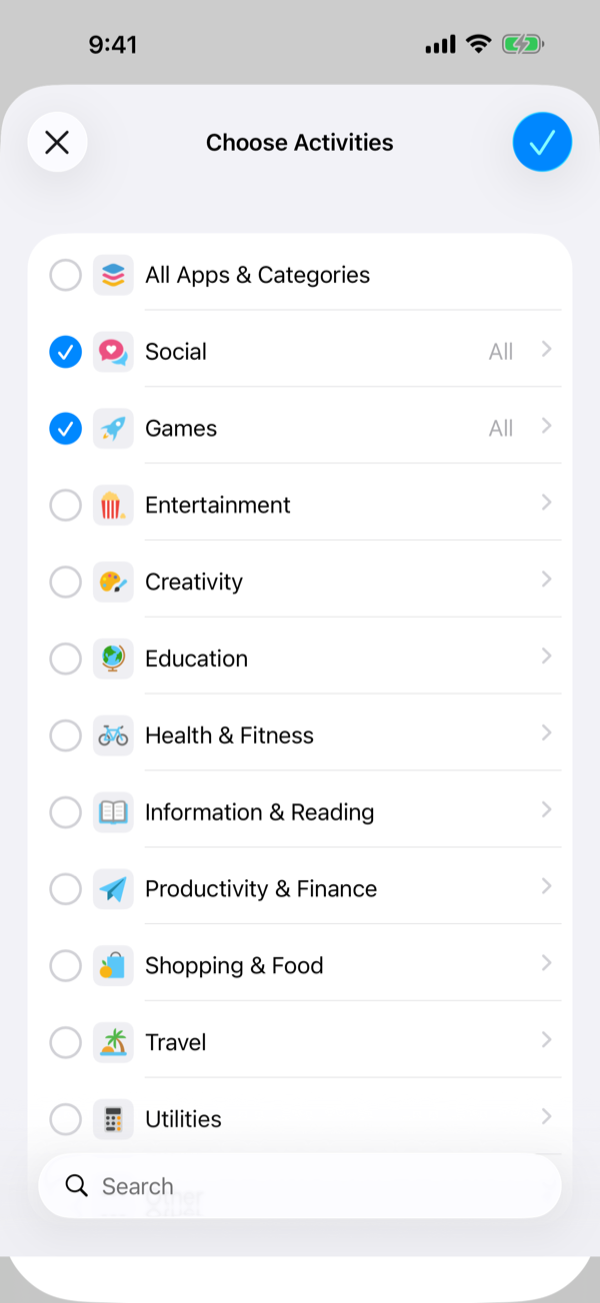
8Here Social and Games are ticked. Tap the blue tick at the top right to save.
-
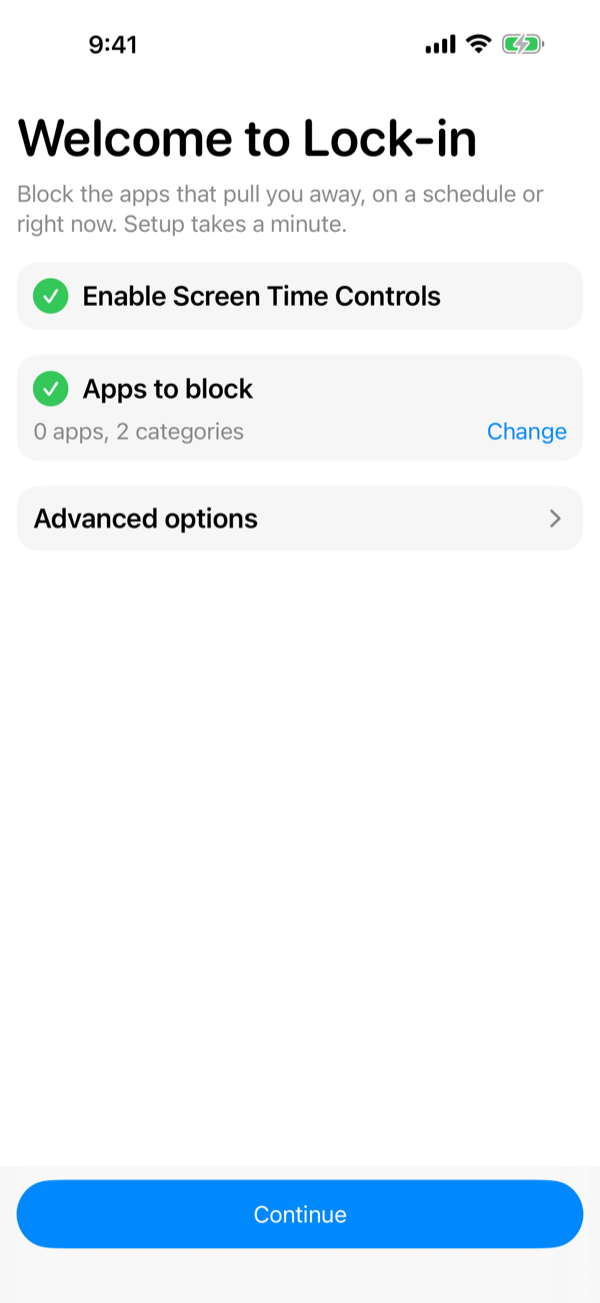
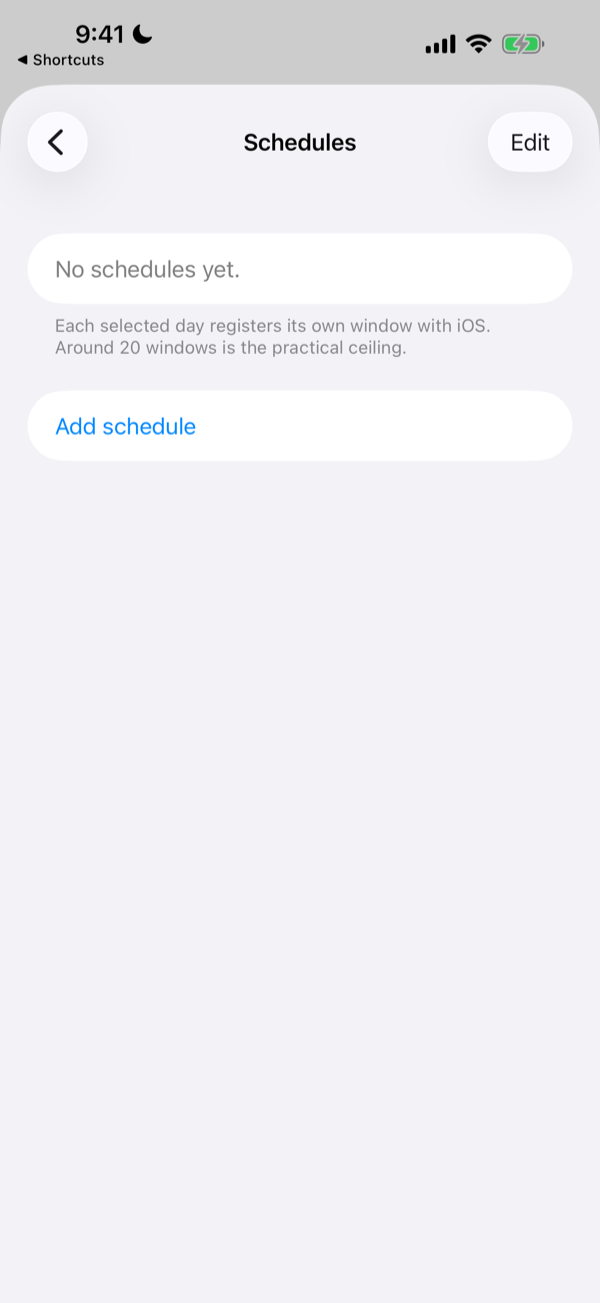
9Both steps are done. Advanced options holds a few more settings, if you want them now.
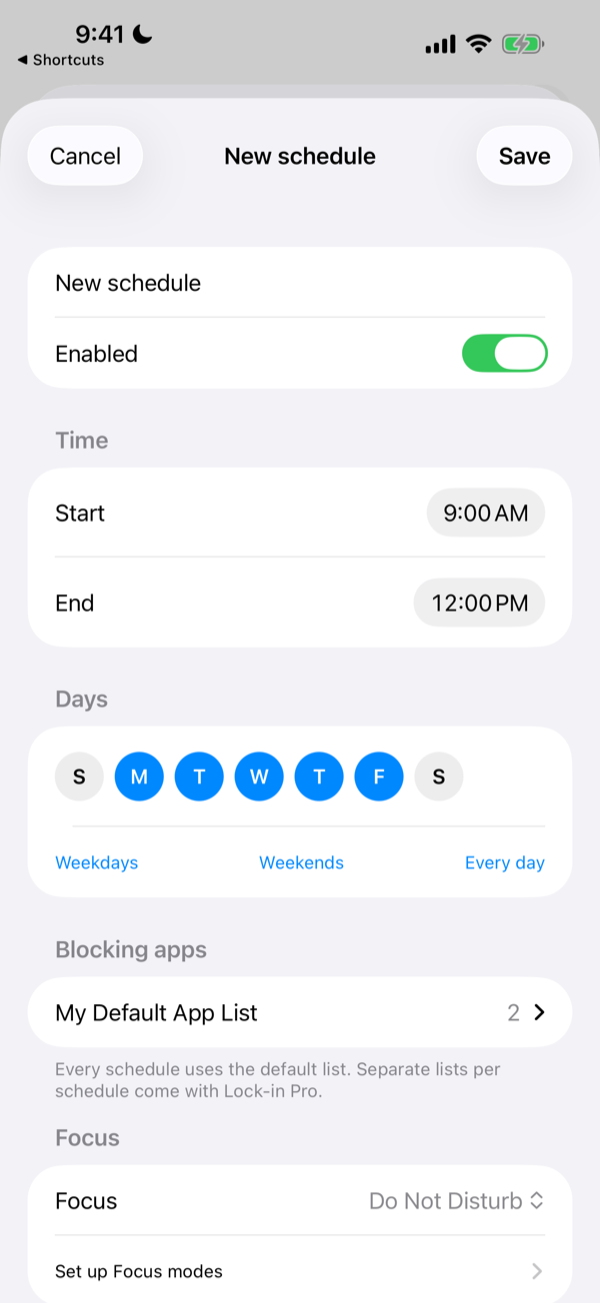
-
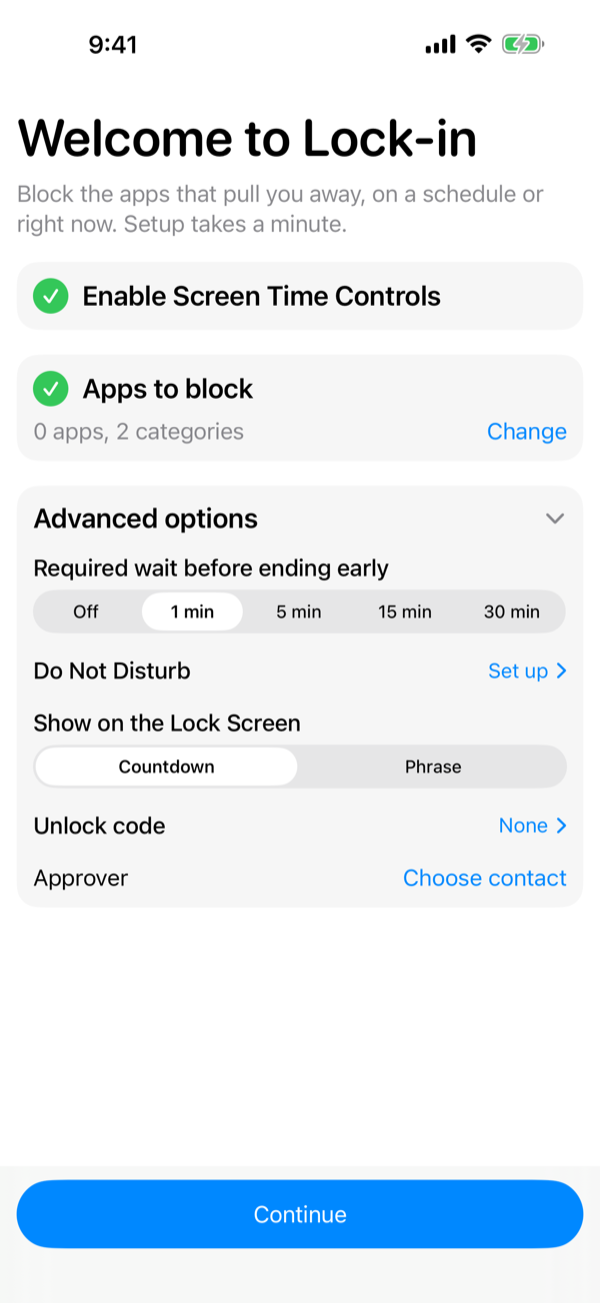
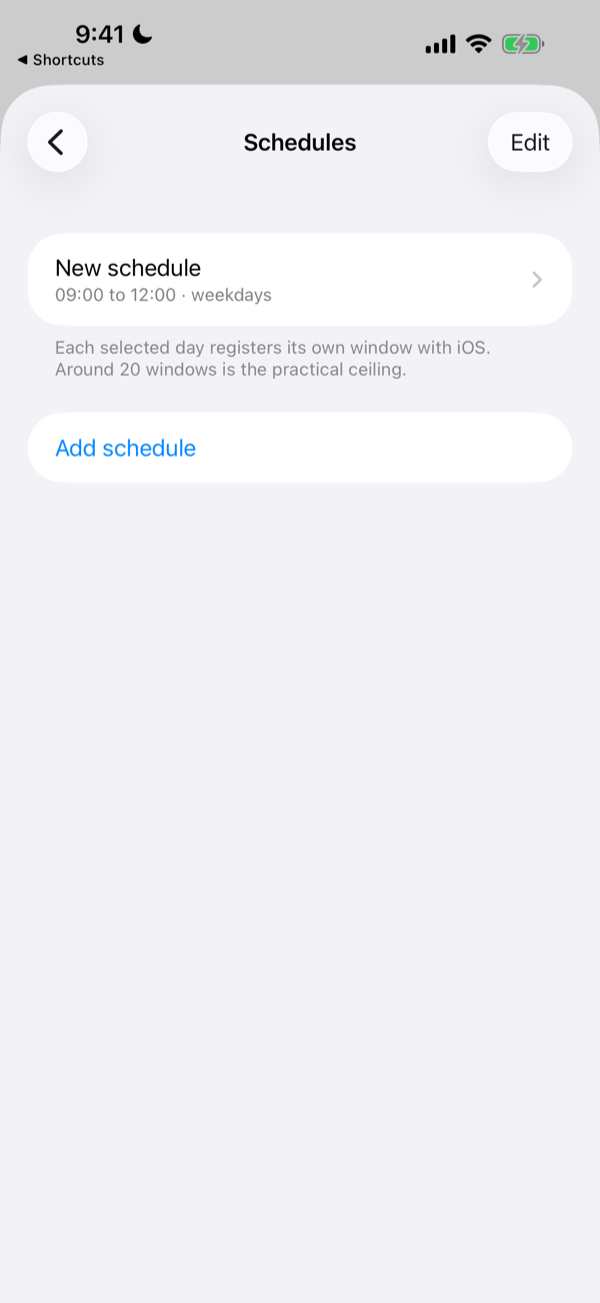
10The defaults are fine for a first session, and every one of these is in Settings later. Tap Continue.
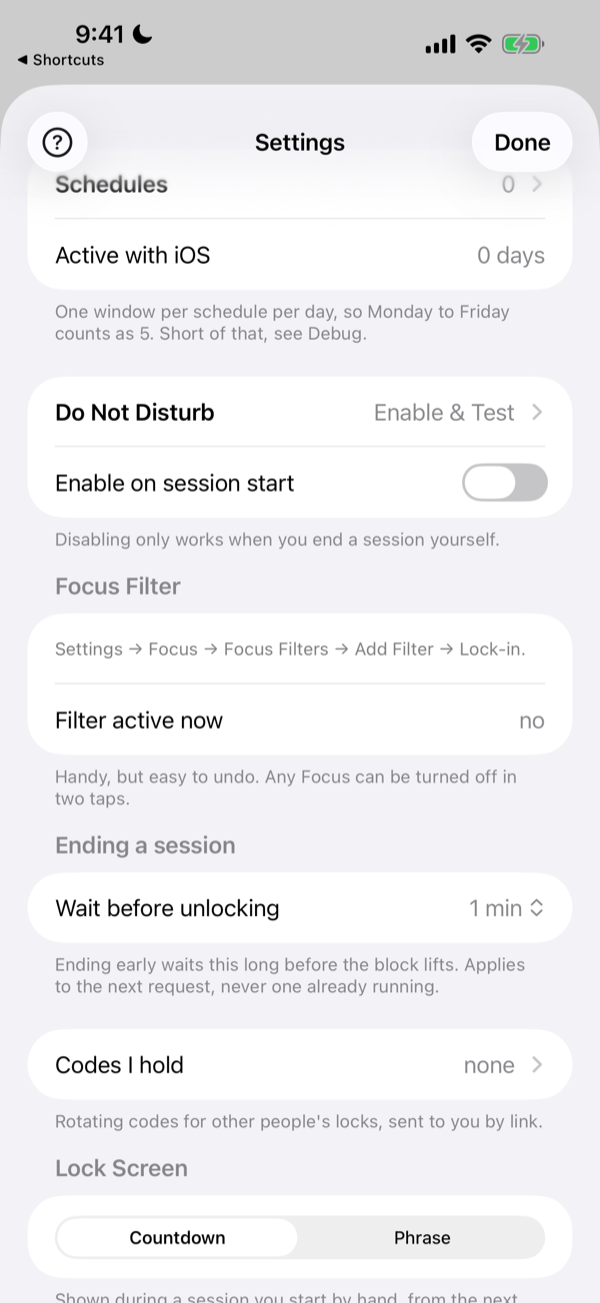
-
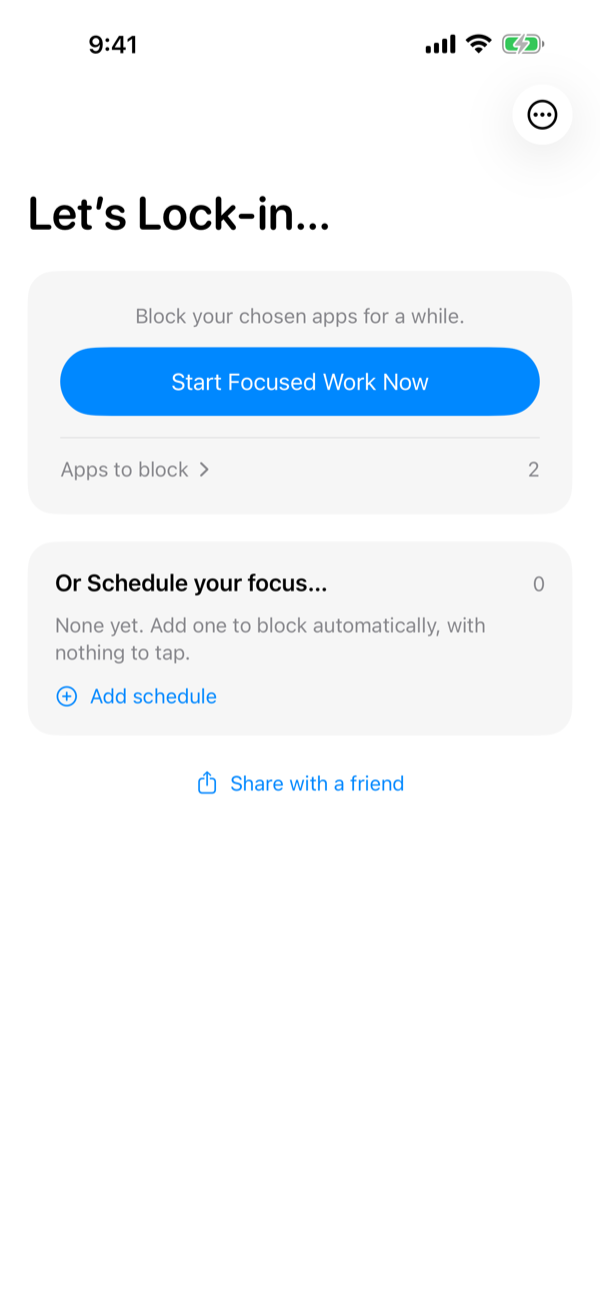
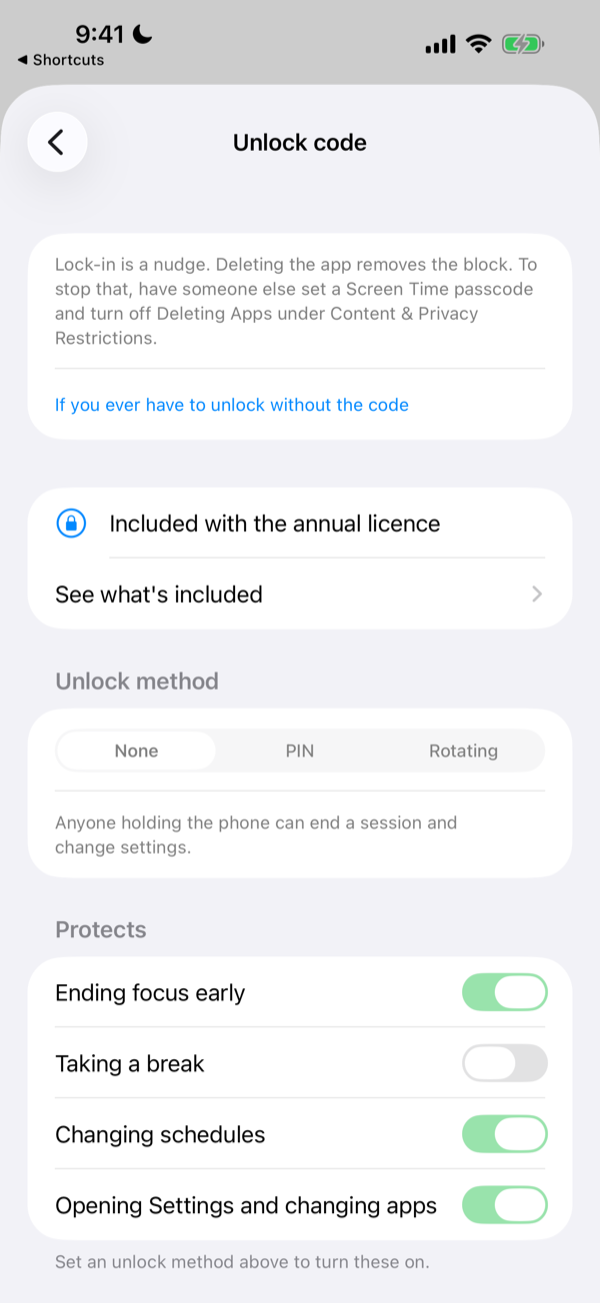
11Home. You are set up.


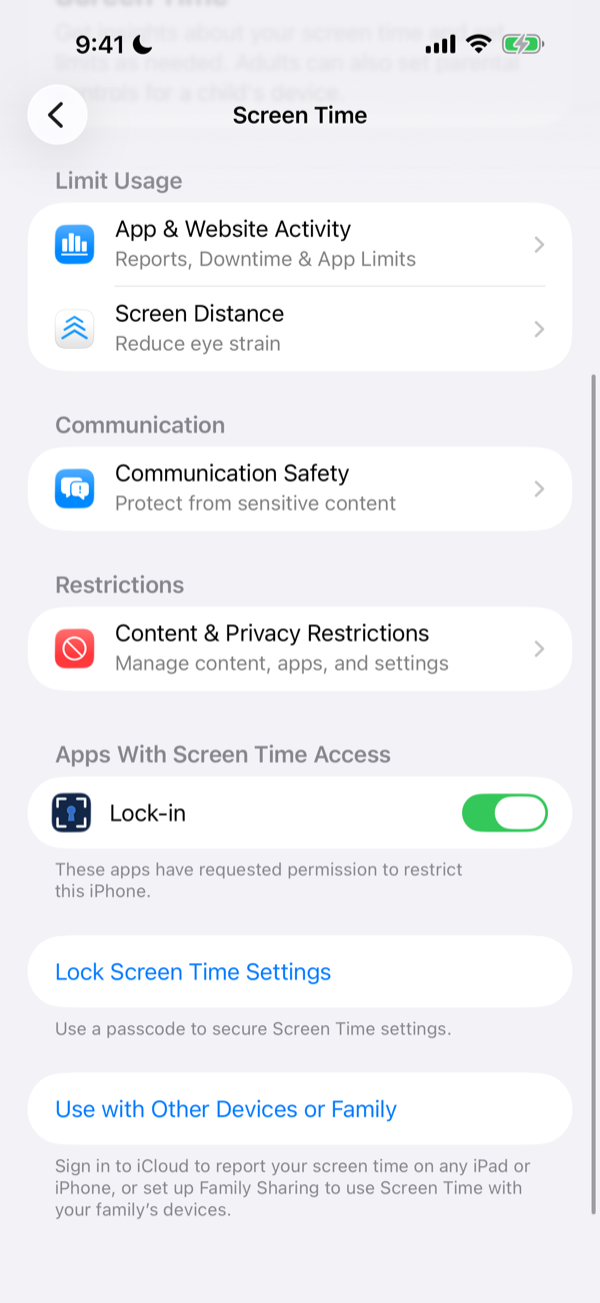
Start and stop a session
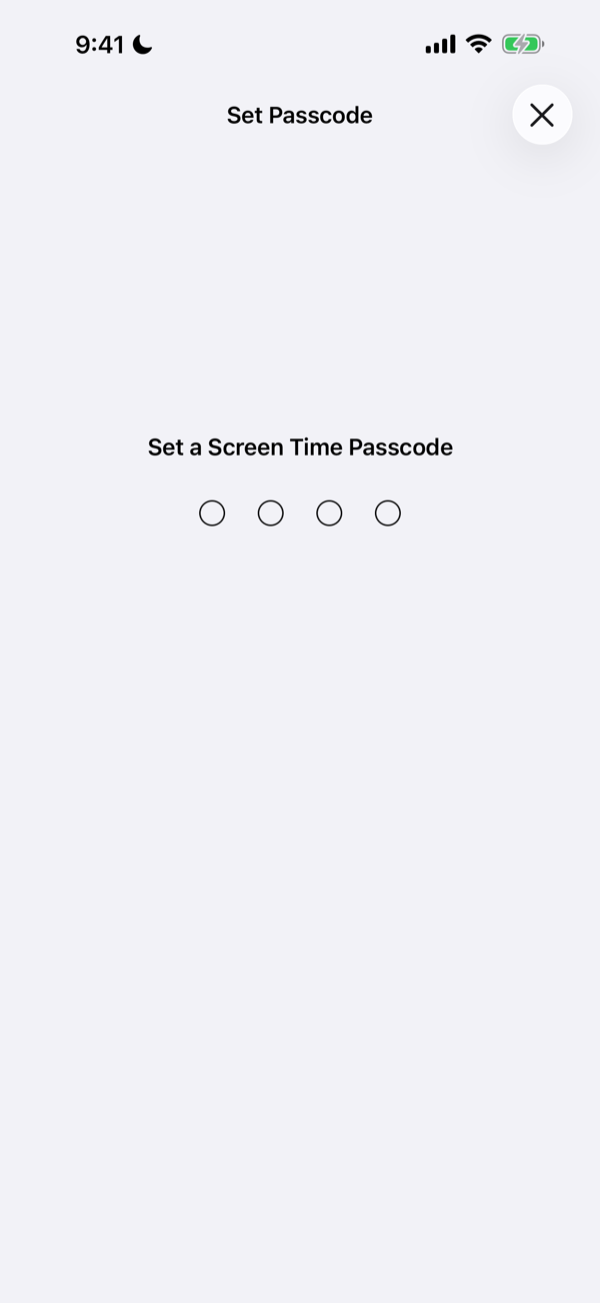
-
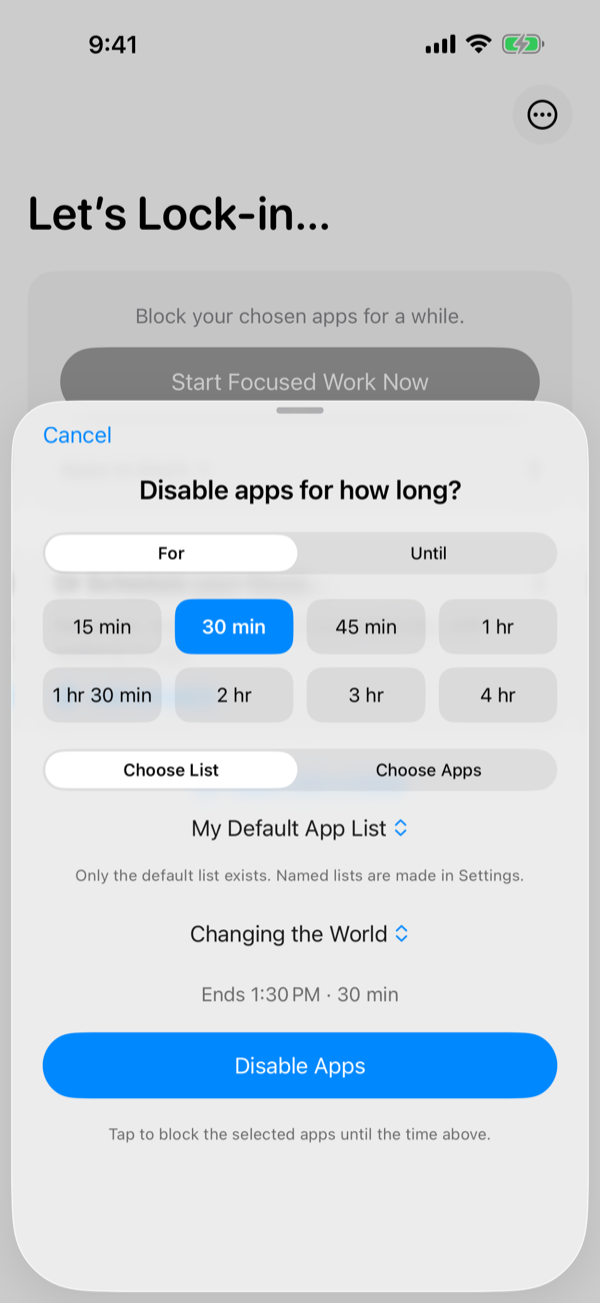
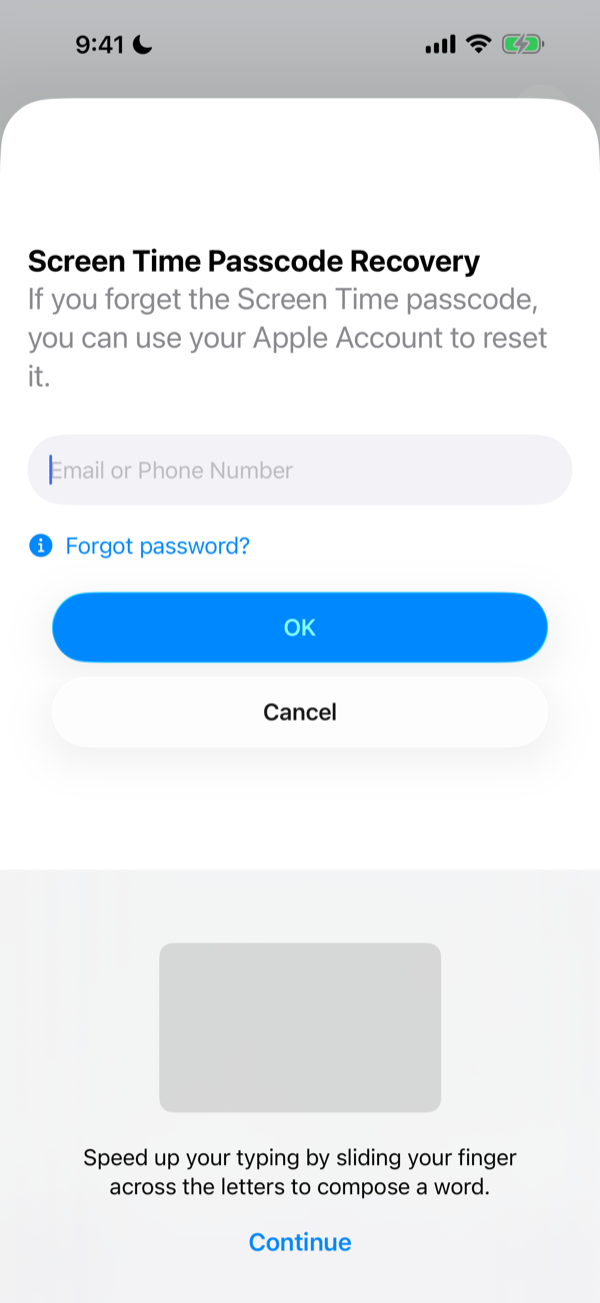
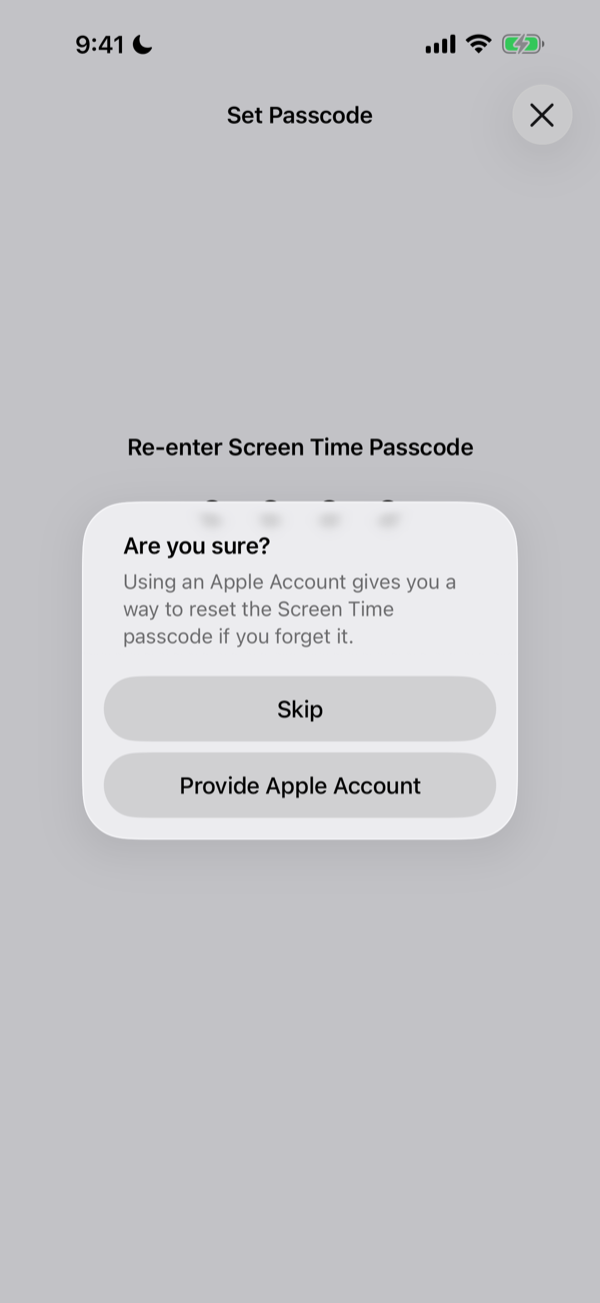
12Tap Start Focused Work Now. Pick how long, or switch to Until for an end time, then tap Disable Apps.
-
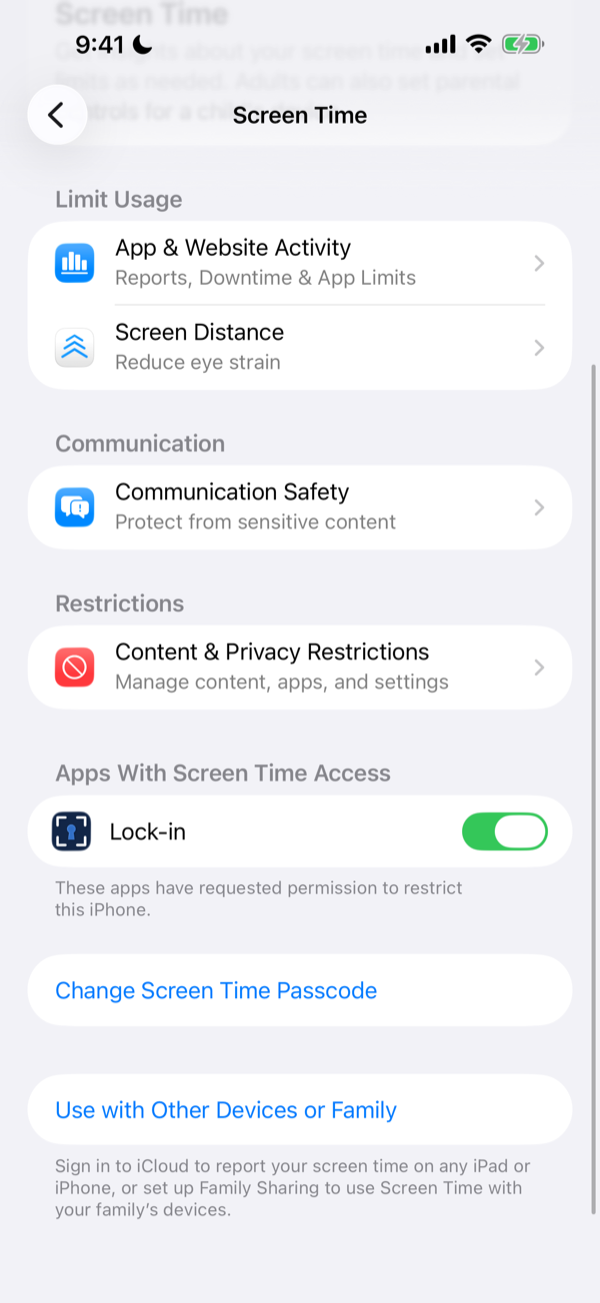
13The first time, iOS asks whether Lock-in may see that a Focus is on. Lock-in uses it only to show whether Do Not Disturb is already on.
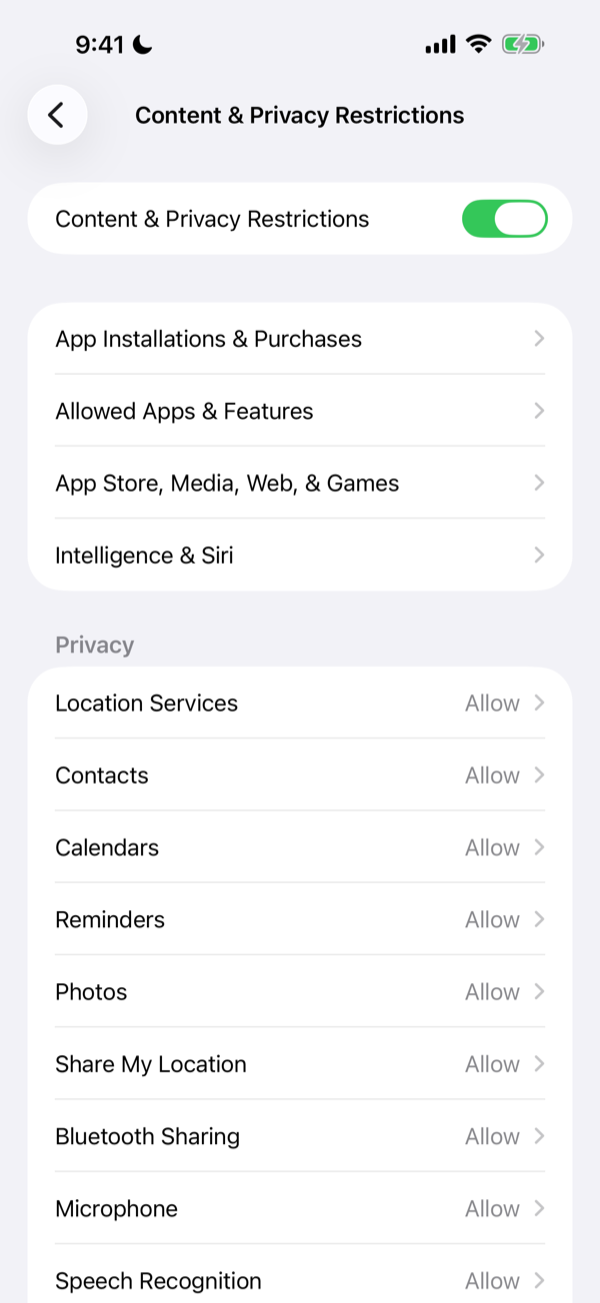
-
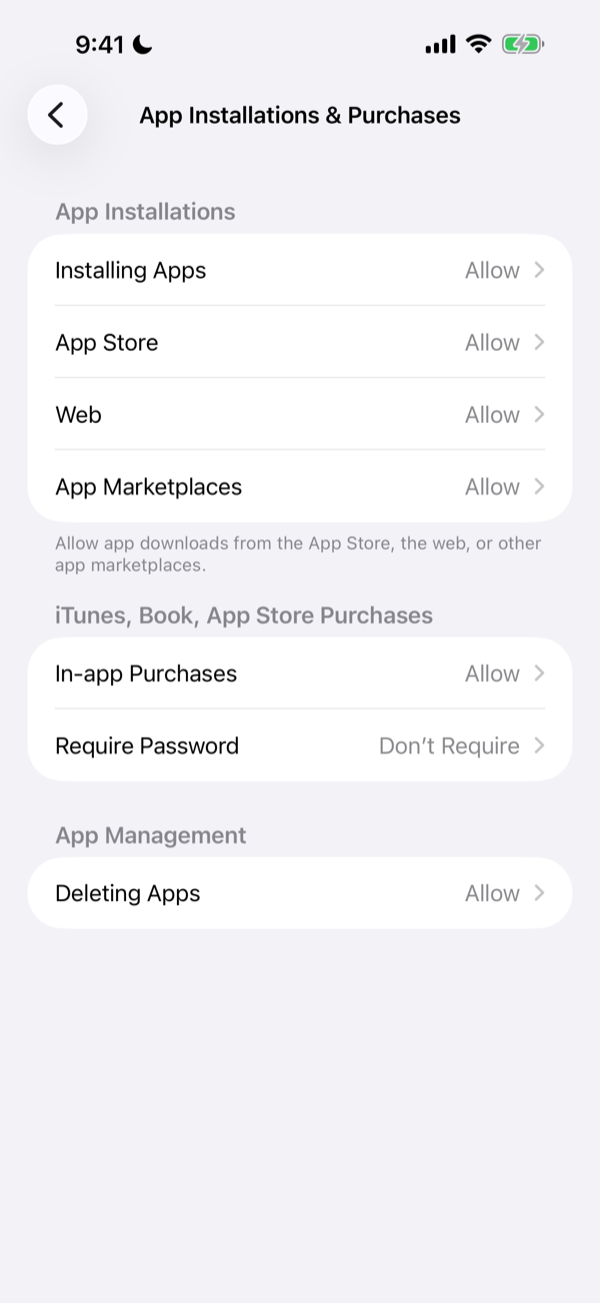
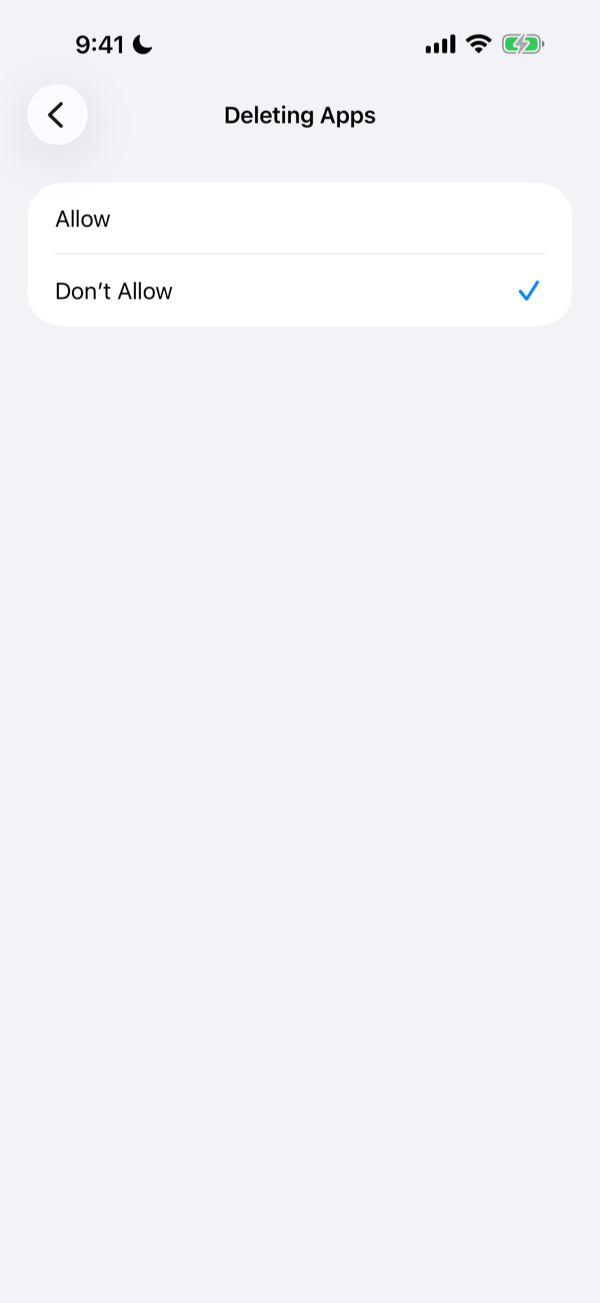
14The apps are blocked until the time shown. Tap Got it.
-
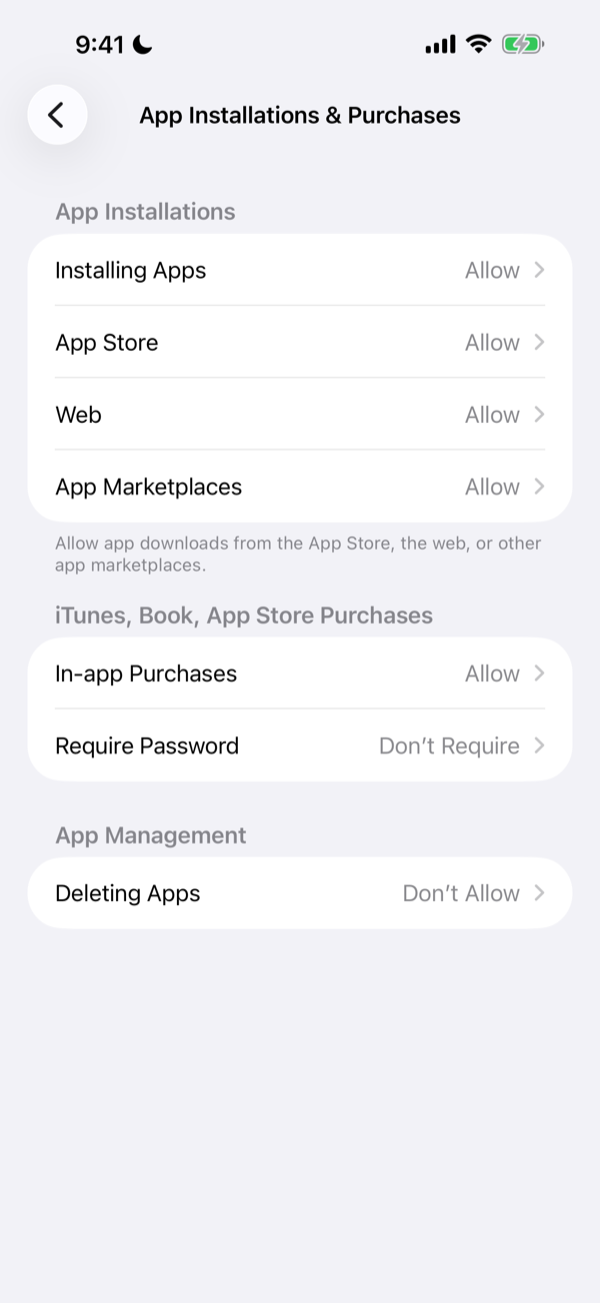
15Home shows the time left. To end early, slide the bar at the bottom up.
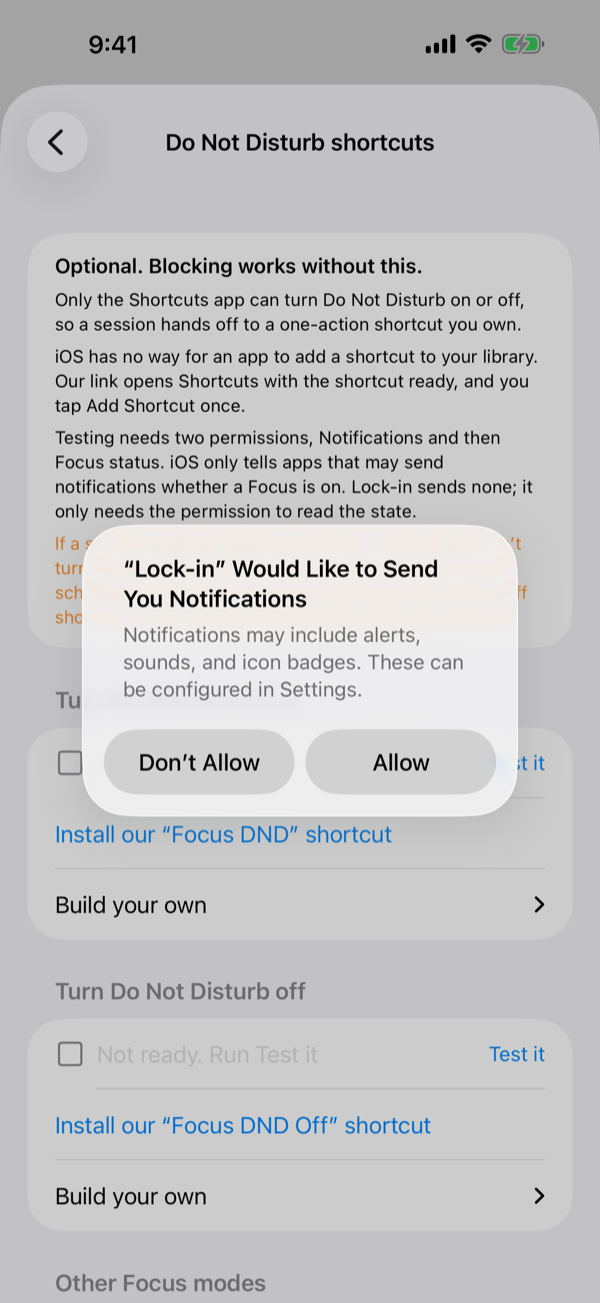
-
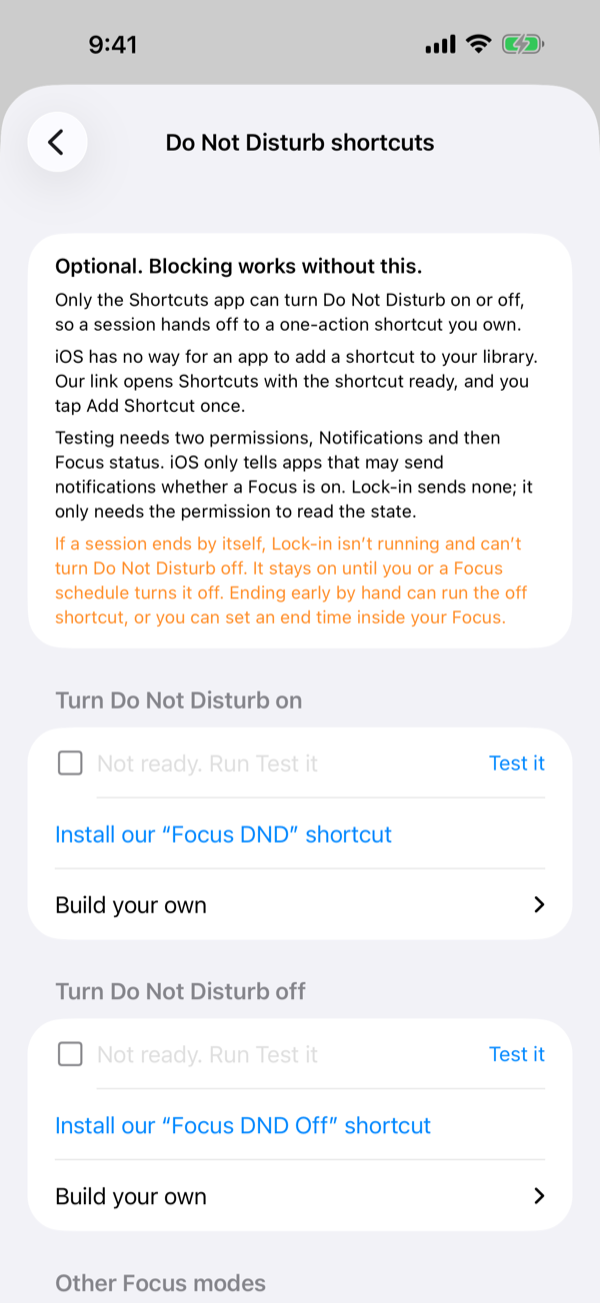
16Lock-in asks you to stop first. Stay locked in, take a break, or tap End it anyway.
-
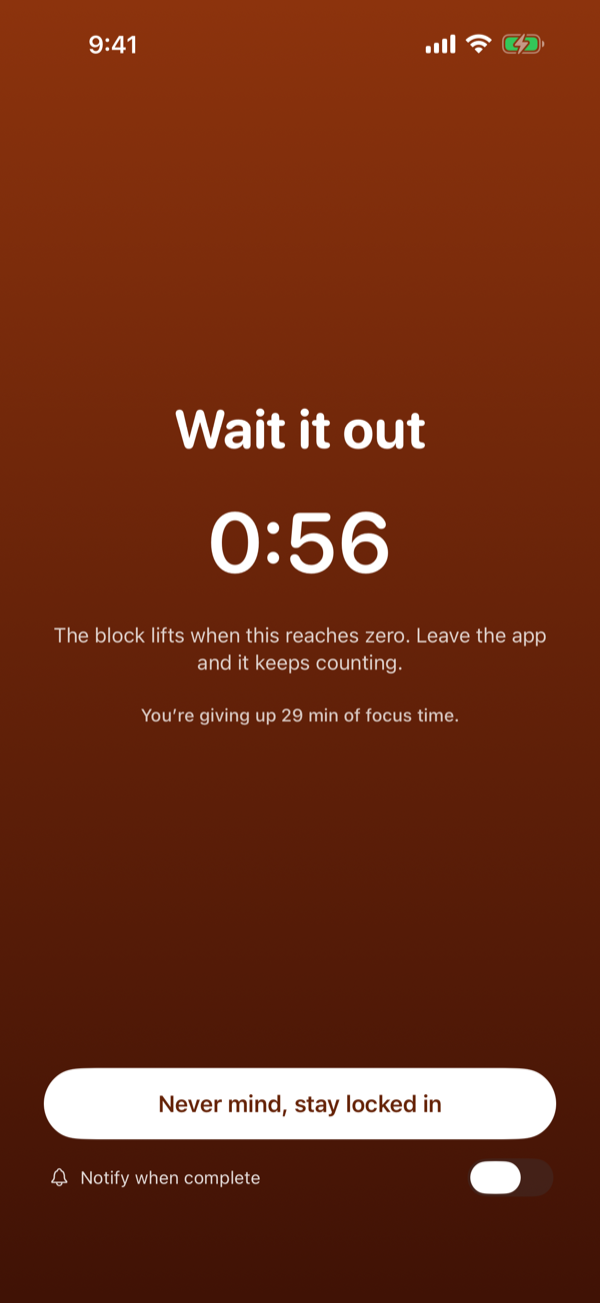
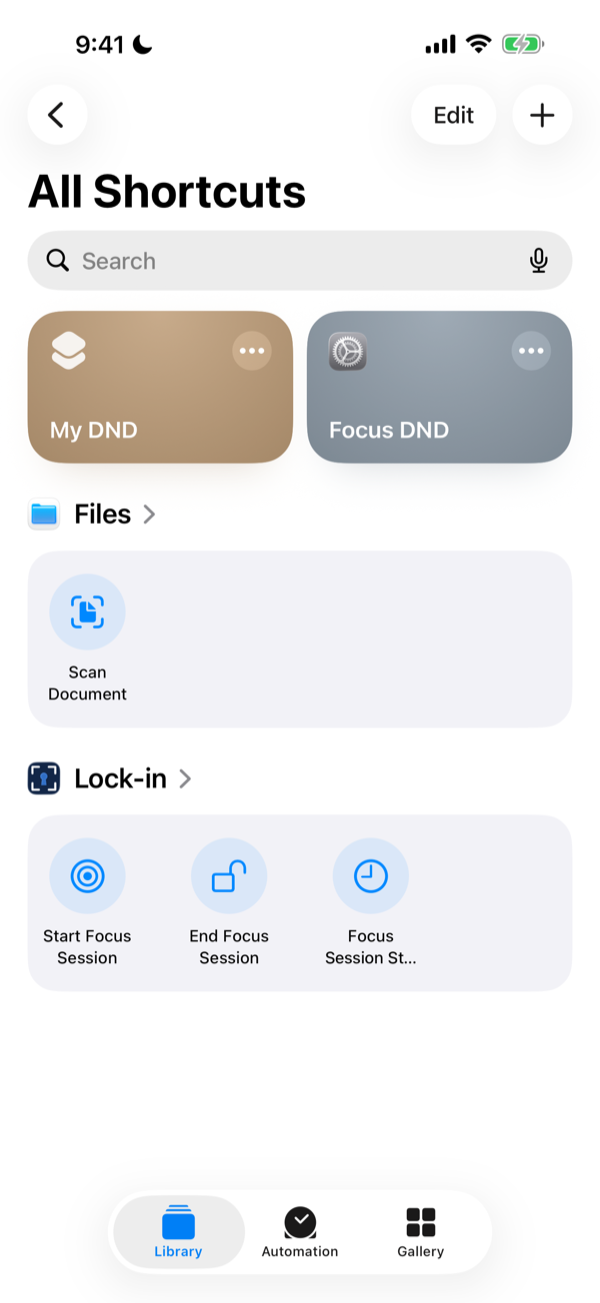
17Then a wait. The block lifts when the countdown reaches zero, even if you leave the app.
-
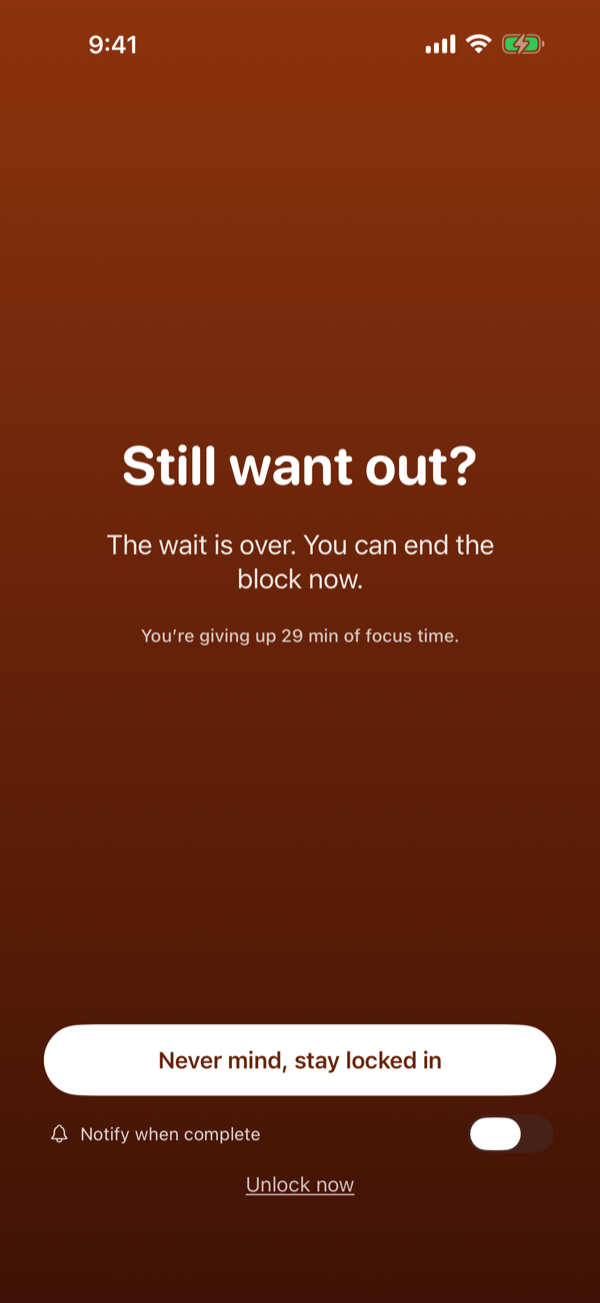
18When the wait is over, tap Unlock now to end the session.
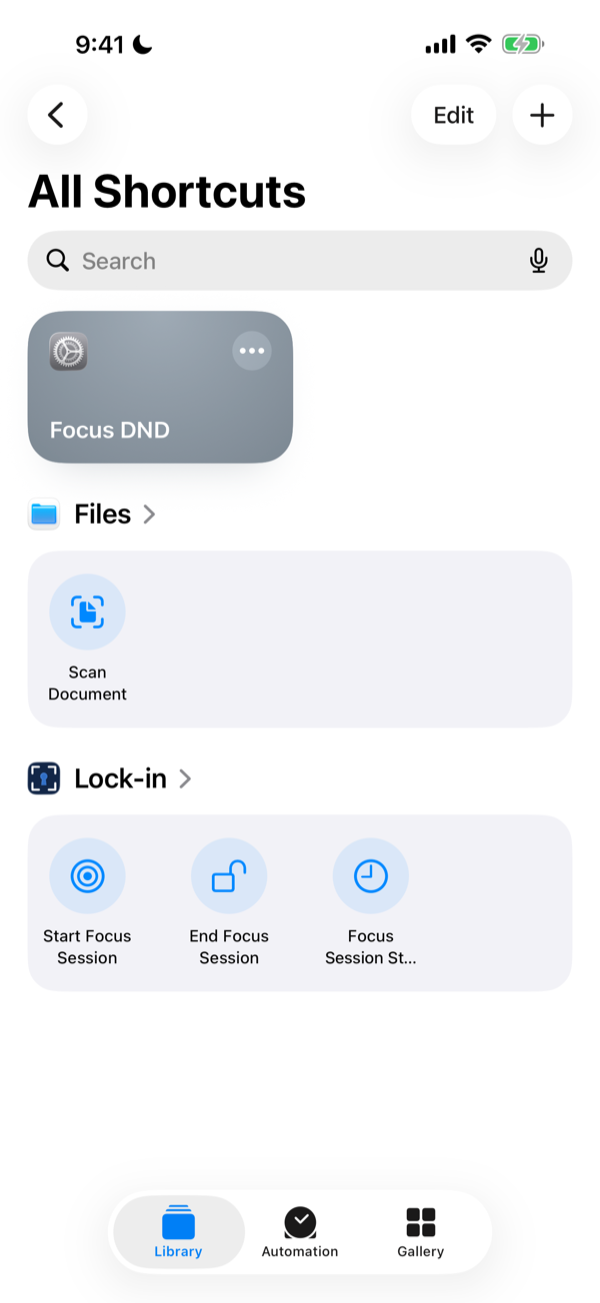
-
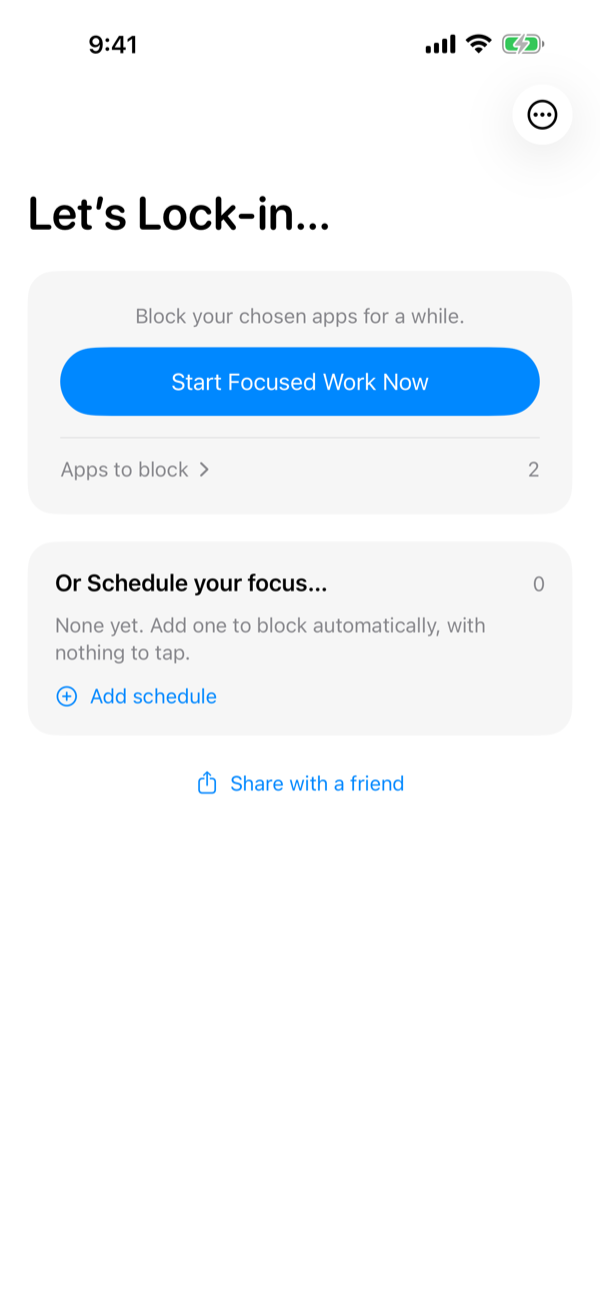
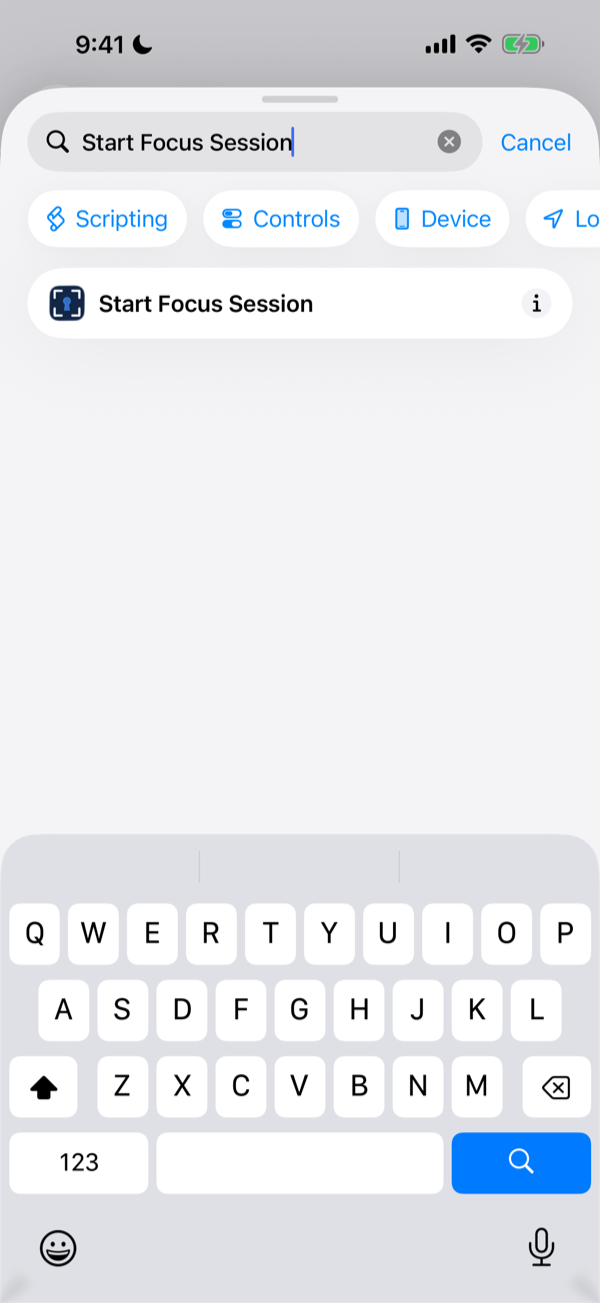
19The apps are unblocked, and Home is ready for the next session.


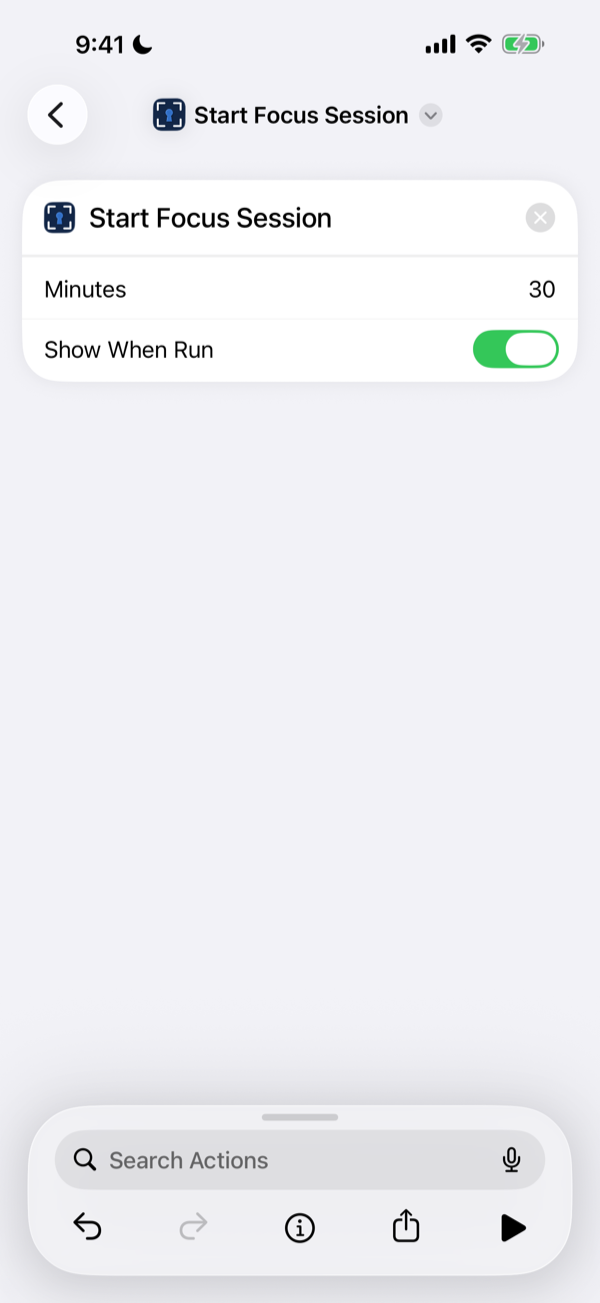
Or block on a schedule
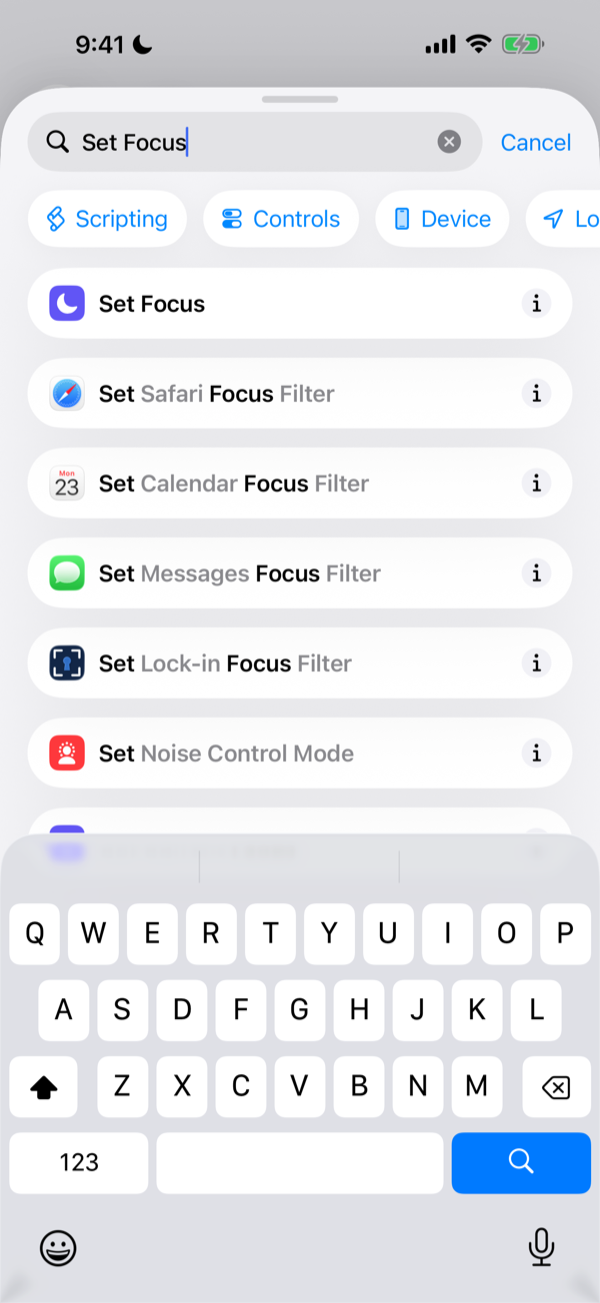
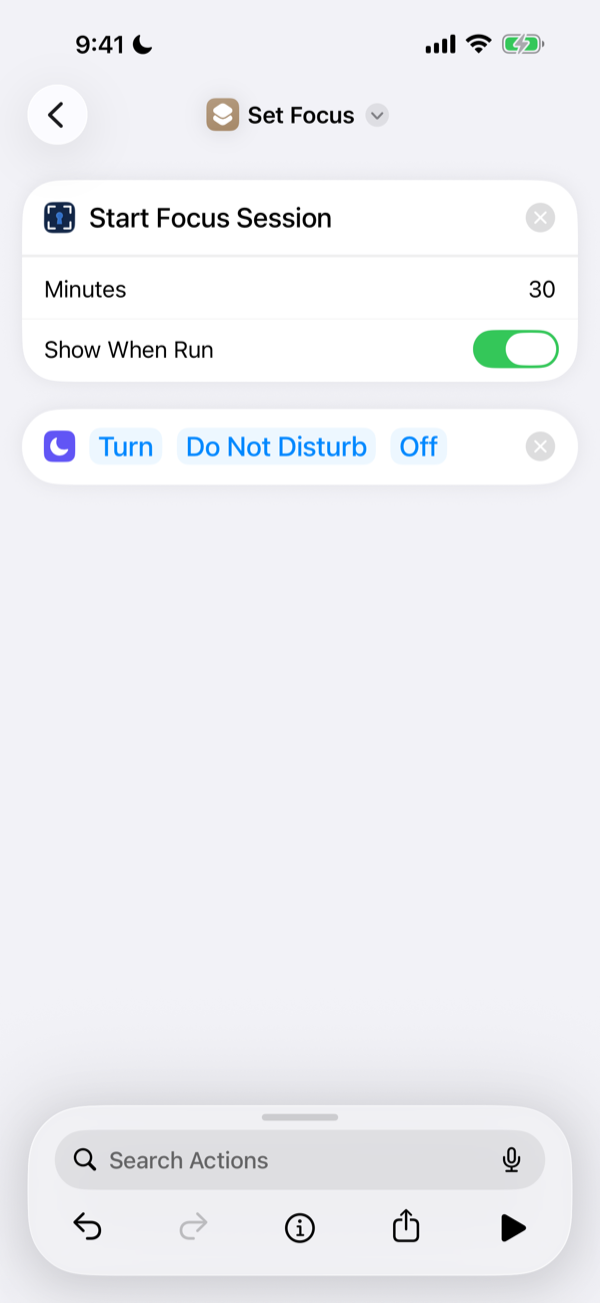
-
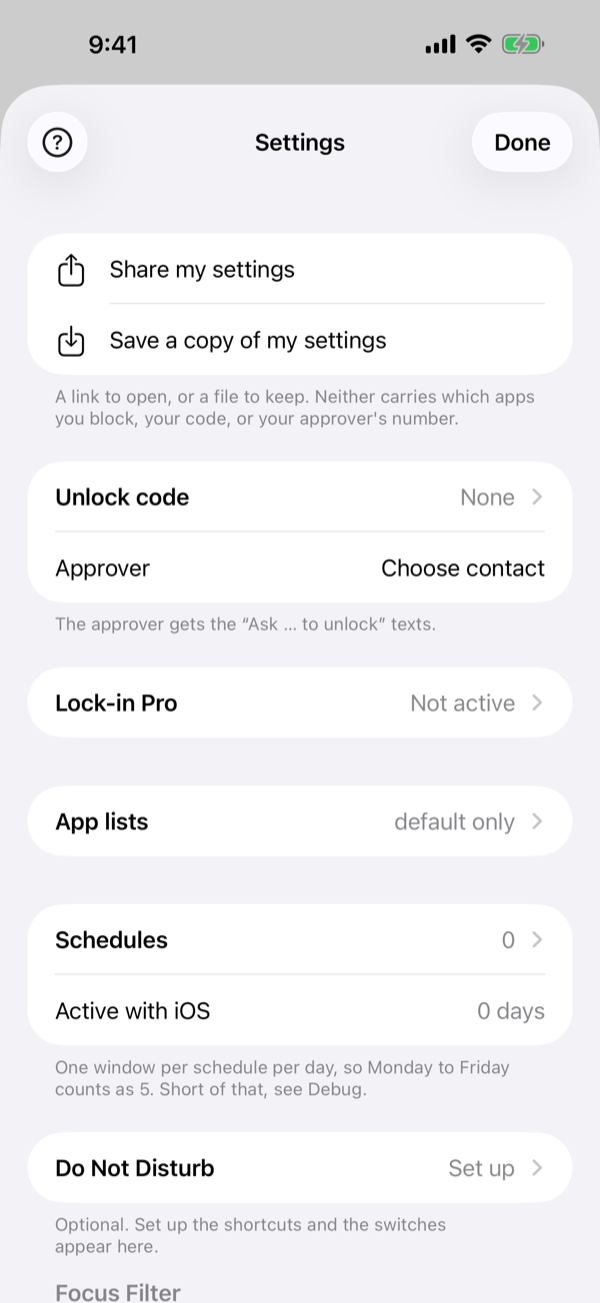
20Settings is in the menu at the top right of Home. Tap Schedules.
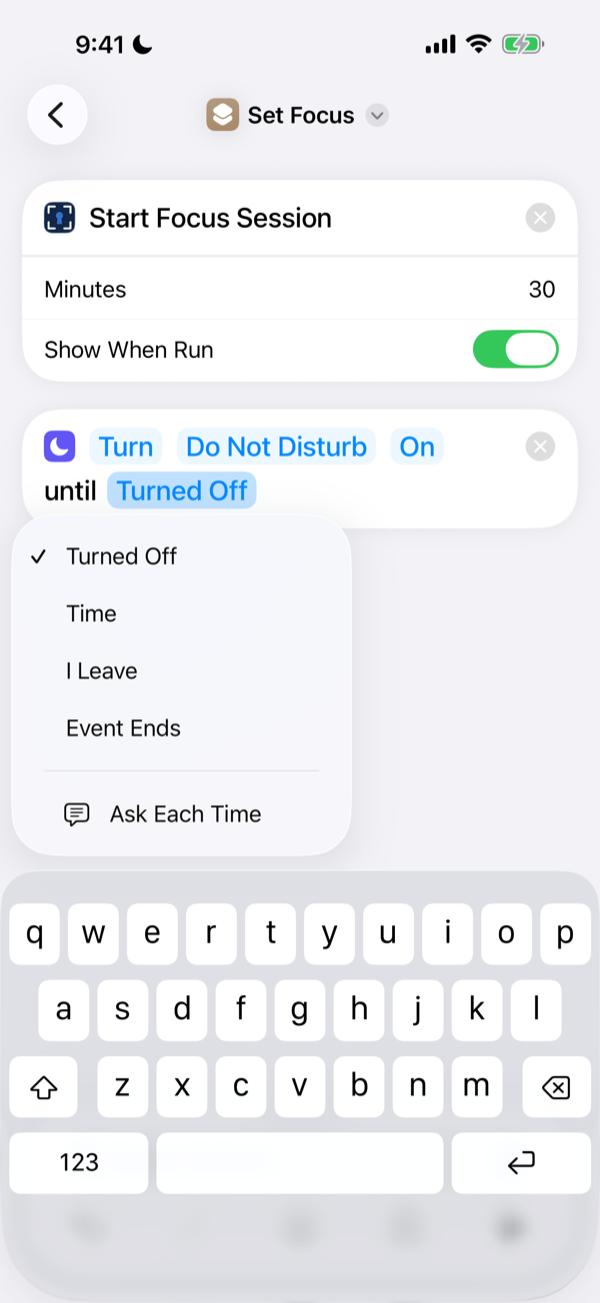
-
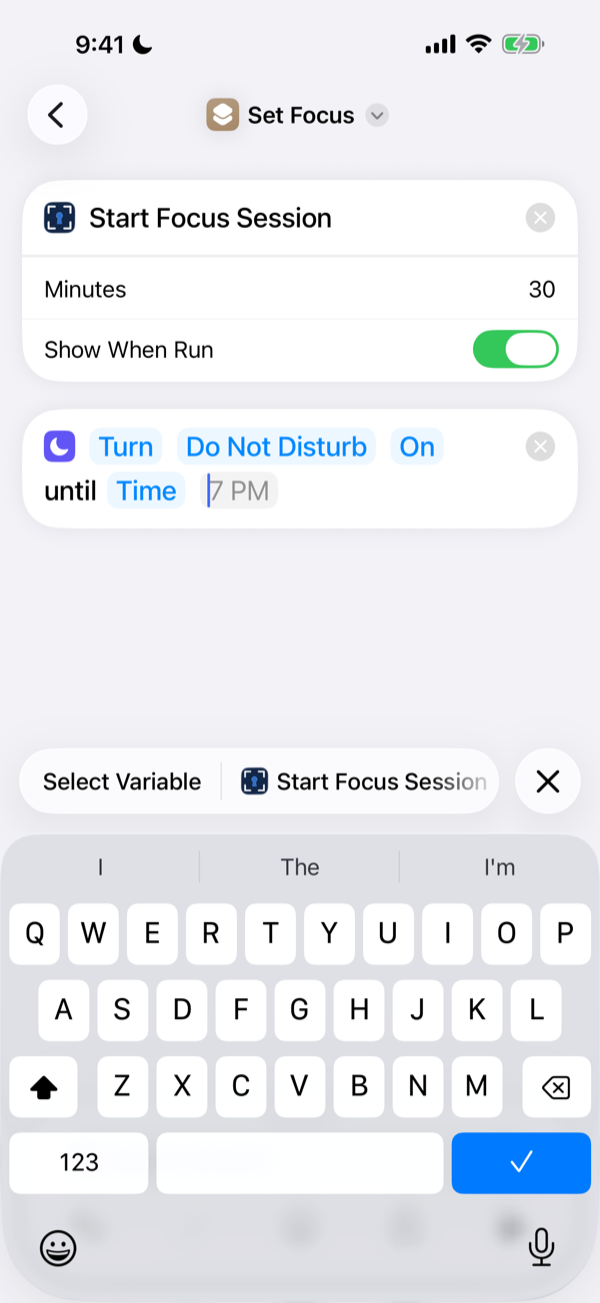
21Tap Add schedule.
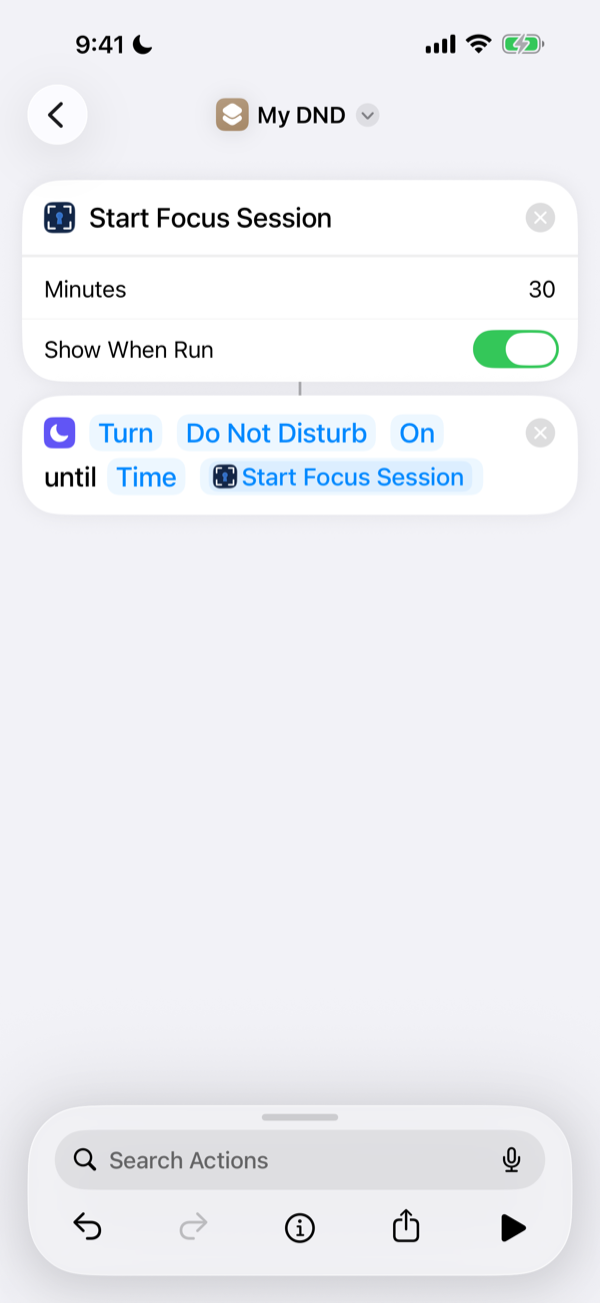
-
22Name it, set the start and end, and pick the days. Tap Save.
-
23It blocks the apps on those days by itself. The free app keeps one schedule.


Make it hard to quit
Lock-in is a nudge. These make the way out slower, and harder still if someone else holds the passcode.
-
24In Lock-in Settings, Wait before unlocking sets the countdown before an early end. One minute is the default; raise it if the urge outlasts it.
-
25Unlock code (part of Lock-in Pro) asks for a PIN or a rotating code before ending early or changing settings. Give the code to someone else.
-
26Deleting Lock-in also ends the block. To stop that, open the iPhone Settings app, then Screen Time, and tap Lock Screen Time Settings.
-
27Choose a Screen Time passcode, twice. Best if someone else picks it and keeps it.
-
28iOS offers to tie the passcode to an Apple Account, so it can be reset. Enter one, or tap Cancel.
-
29If you cancel, iOS checks. Skip goes on without one.
-
30The passcode is set. Tap Content & Privacy Restrictions.
-
31Turn it on, then tap App Installations & Purchases.
-
32Under App Management, tap Deleting Apps.
-
33Choose Don’t Allow.
-
34Deleting Apps reads Don’t Allow. No app can be deleted now without the Screen Time passcode, Lock-in included.


Do Not Disturb
Blocking an app leaves its notifications on. A Focus silences them, and only you can turn one on, so there are two ways to pair them.
Focus Filter. In the iPhone Settings app: Focus, then a Focus such as Do Not Disturb, then Add Filter under Focus Filters, then Lock-in. Turning that Focus on starts the block too. Apple’s Focus screens are not pictured here.
A shortcut. A session can turn Do Not Disturb on through a shortcut. Lock-in has one ready to install:
-
35In Lock-in Settings, tap Do Not Disturb. iOS asks about notifications. Allow it: Test it needs it to read whether a Focus is on, and Lock-in sends none.
-
36Tap Install our “Focus DND” shortcut.
-
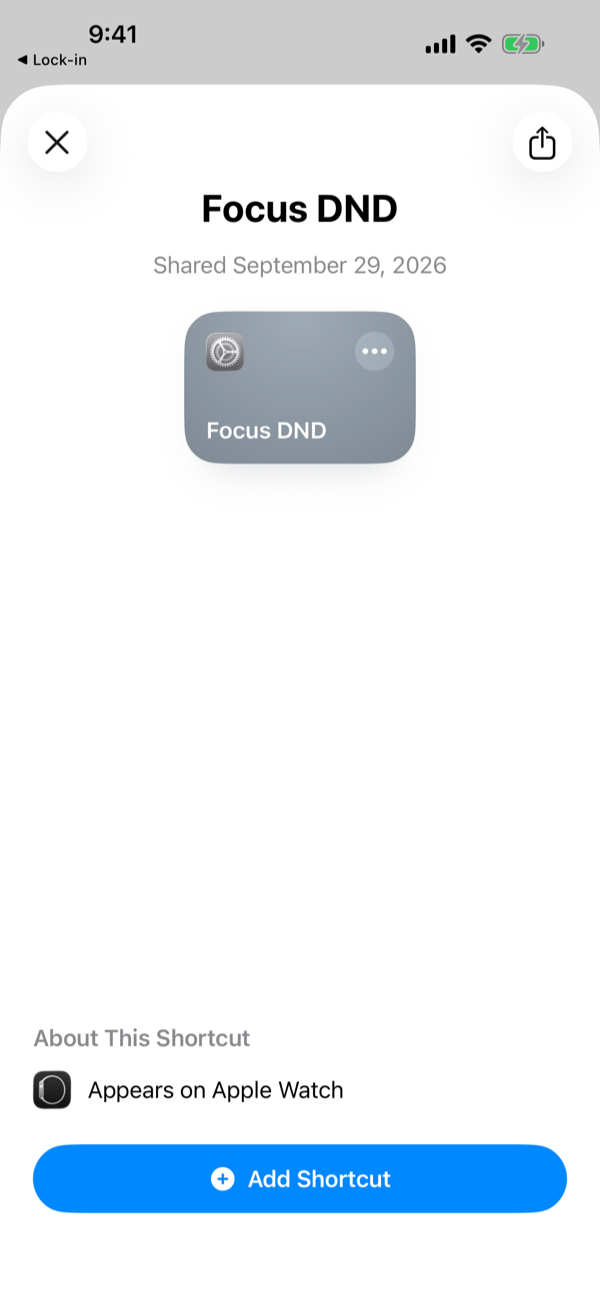
37The Shortcuts app opens on it. Tap Add Shortcut.
-
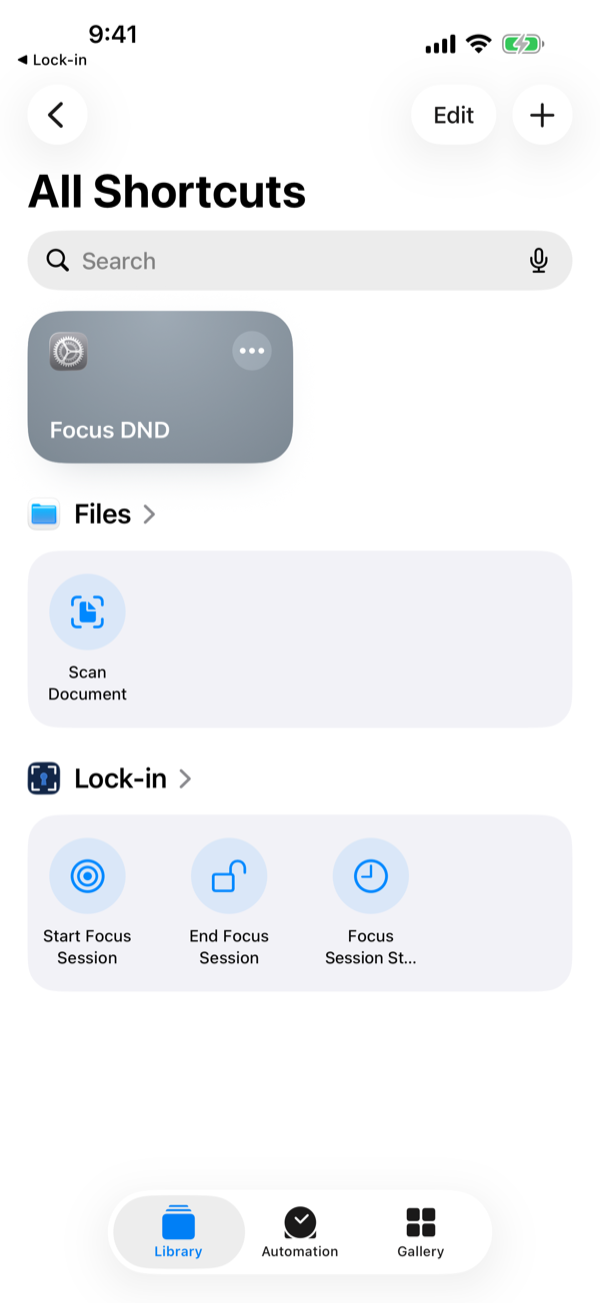
38It is in your shortcuts. Tap Lock-in at the top left to go back.
-
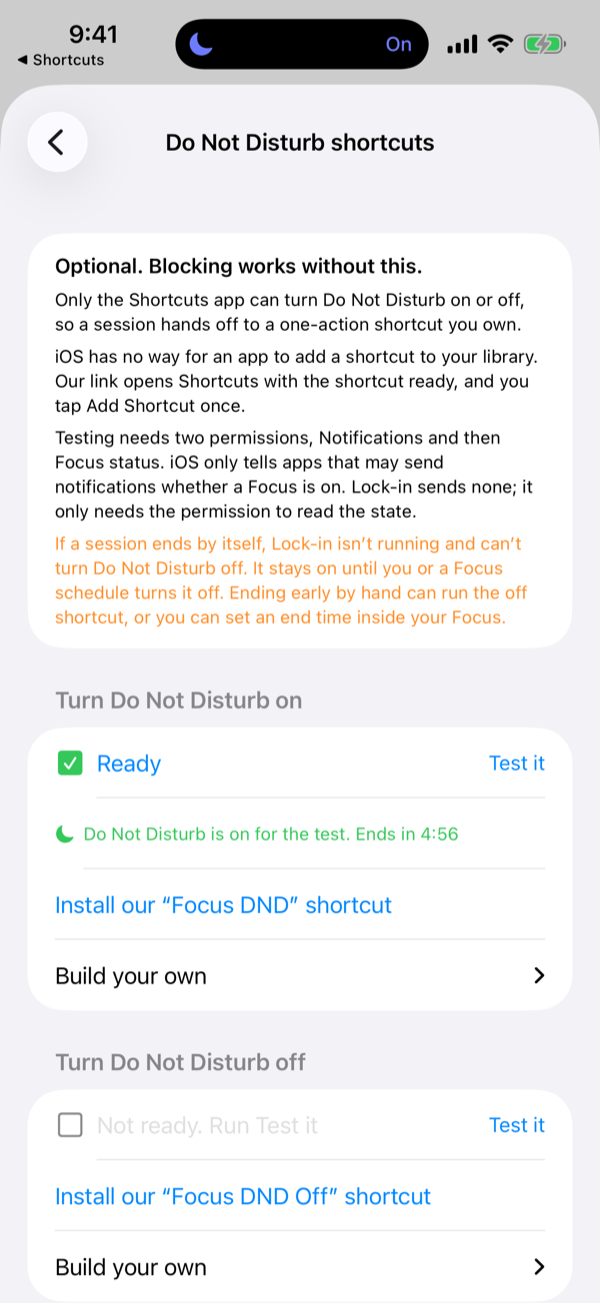
39Tap Test it. Do Not Disturb comes on for five minutes and the box says Ready. Back in Settings, a switch turns it on with every session.


Or build your own shortcut
-
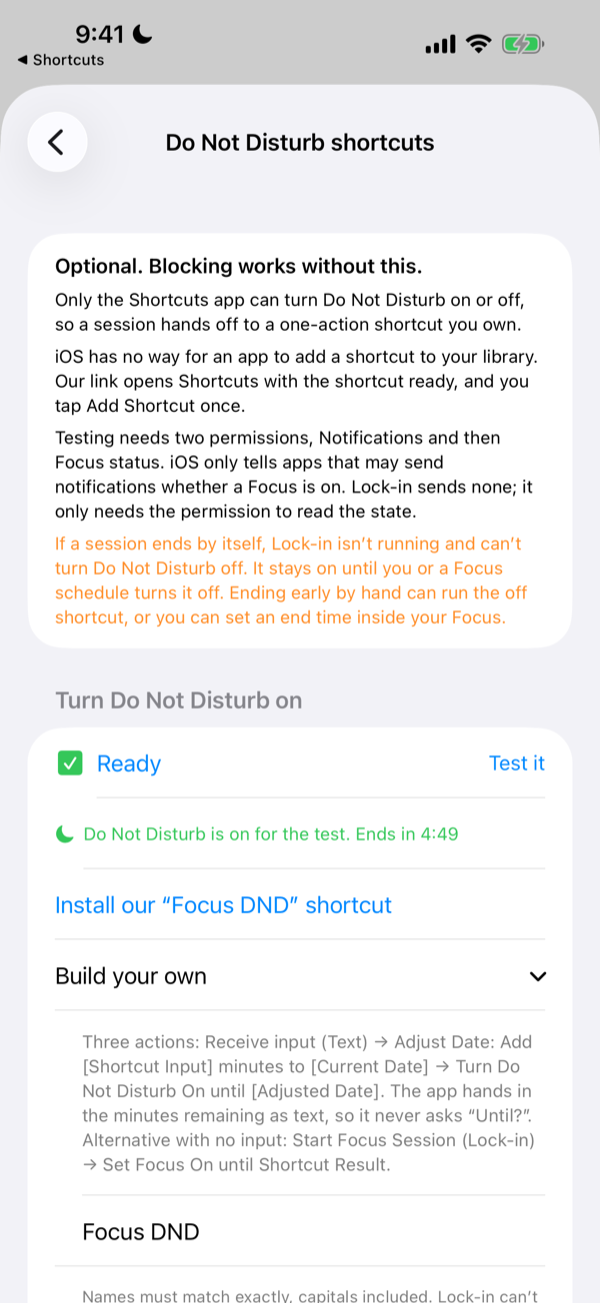
40Build your own gives the recipe and a field for the shortcut’s name. This one needs two actions.
-
41In the Shortcuts app, Lock-in’s actions are listed. Tap + for a new shortcut.
-
42Search the actions for Start Focus Session and tap it.
-
43Set the minutes. It starts the block and hands on the time the session ends.
-
44Search for Set Focus and tap it. Set Lock-in Focus Filter, below it, is the Focus Filter’s own action.
-
45Tap Off so it reads On.
-
46Tap Turned Off and choose Time.
-
47Tap the time, then Start Focus Session in the bar above the keyboard.
-
48It reads Turn Do Not Disturb On until Start Focus Session. Rename it from the title menu.
-
49Type that exact name in Lock-in under Build your own, then tap Test it.


When you open a blocked app
During a session, opening a blocked app shows Lock-in’s block screen in its place, with the time left. That screen only appears on a real iPhone, so it is not pictured here.
Still stuck
Every setting is explained on Settings explained. The support page has the common problems, and support@takesfocus.com reaches a person.
Don’t have it yet? Lock-in is on the App Store, for iPhone.
Get Lock-in on the App Store